Delivery & Installation stops the back-and-forth phone calls about delivery dates. Customers get an email after they order, pick a date that suits them and can change it themselves up to a cut-off you choose. You sell assembly, installation and removals on the product page, plan your crews around UK postcode areas and print a run sheet each morning.
In this tutorial we’ll install the plugin, connect it to your store and fill in your business details. The tutorials linked at the end walk you through the rest of the setup.
Steps in short
- Install Delivery & Installation from the Orbit plugin store.
- Open Deliveries from the sidebar once so it can see new orders.
- Fill in Settings → Your business and save.
- Set up regions, lead times, services and emails — in that order.
1. Install it from the Orbit plugin store
Find Delivery & Installation in the Orbit plugin store — it’s listed under Shipping & Fulfillment — and install it. It costs £39.99 a month (or £399.99 a year) and starts with a 14-day free trial.
You’ll be asked to approve what the plugin can do. It reads and updates your orders (so it can write the booked date onto them), creates the hidden service products it sells, reads your products’ categories, brands and tags, and sends booking emails from your store.
2. Open it once to connect your store
Open Deliveries from your dashboard sidebar, under Installed Plugins. The first visit connects the plugin to your store — until then it can’t sync or receive anything from your store, so do it straight after installing.
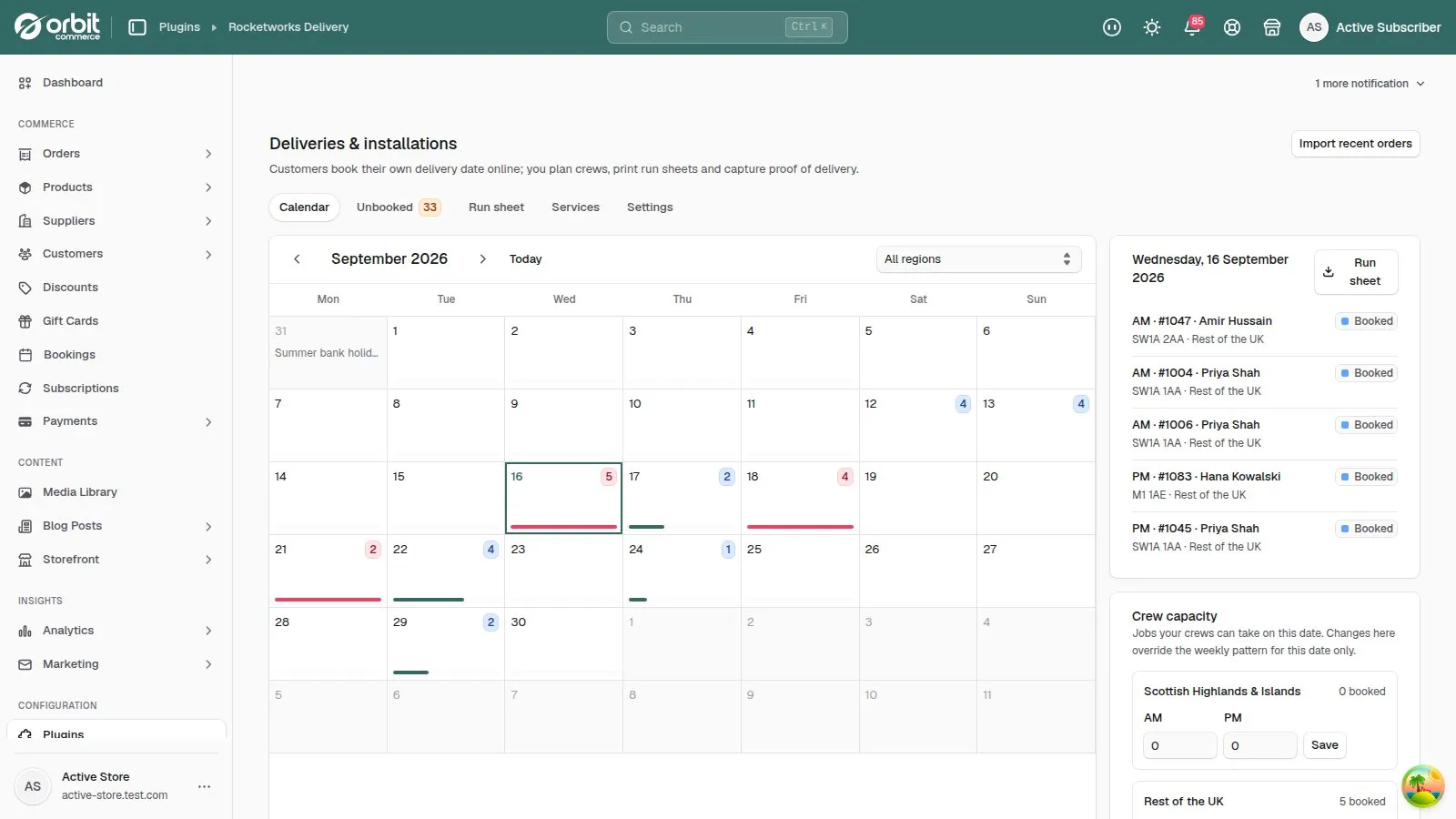
Everything lives on one screen with five tabs: Calendar, Unbooked, Run sheet, Services and Settings.
3. Add your business details
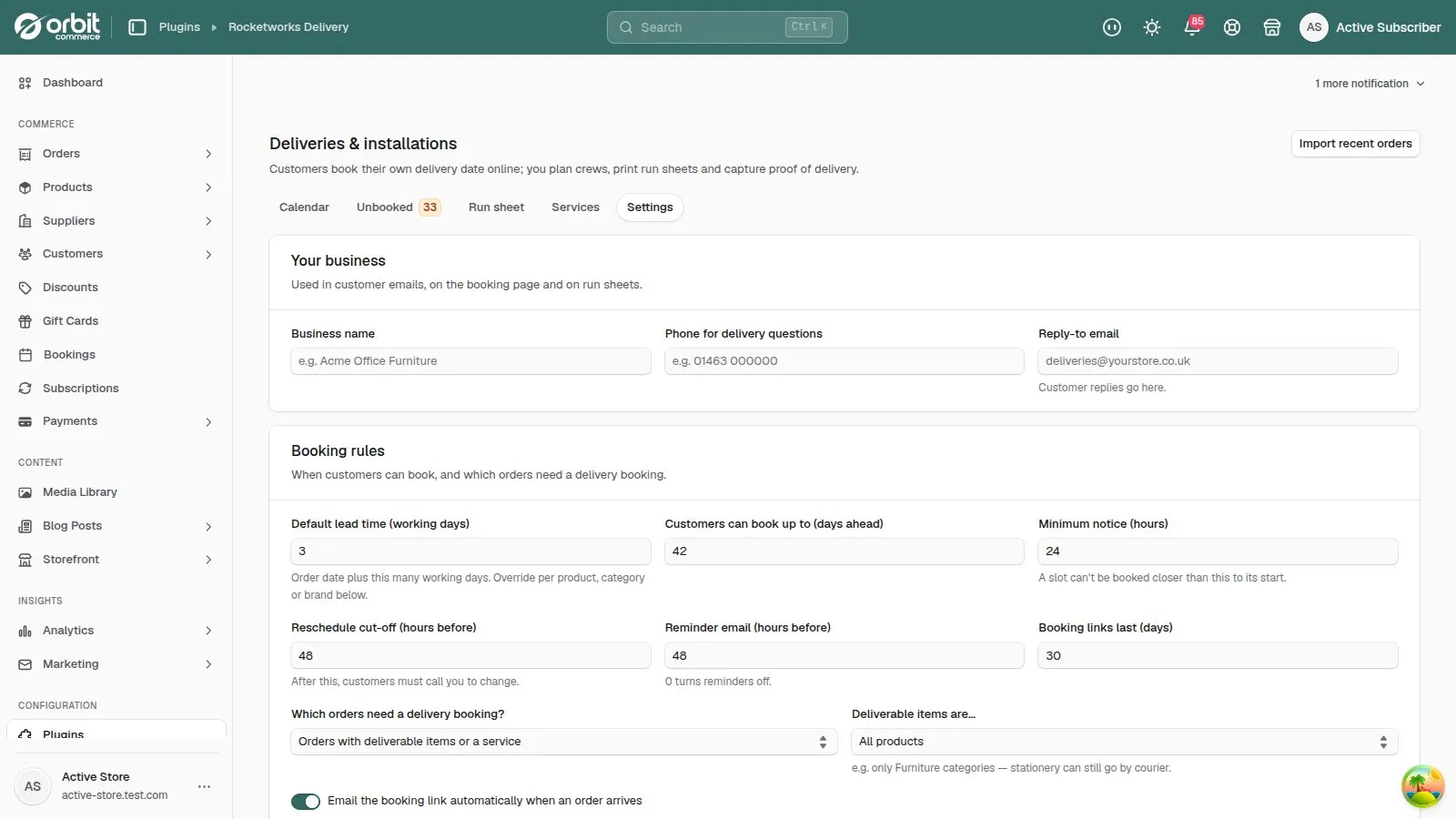
Open Settings and fill in Your business:
- Business name — shown at the top of customer emails, the booking page and run sheets.
- Phone for delivery questions — shown to customers when it’s too late to change a booking online.
- Reply-to email — where customer replies to booking emails go.
Press Save settings at the bottom of the page.
4. Work through the rest of the setup
With the basics in place, set the plugin up in this order. Each step has its own tutorial:
- Delivery regions and crew capacity — where you deliver and how many jobs your crews can do.
- Lead times, booking rules and time slots — the earliest date a customer can pick, and how far ahead.
- Services on your product pages — assembly, installation and removals.
- The booking emails and page — what your customers see.
Good to know
- Orders placed before you installed aren’t picked up automatically. Use Import recent orders (top right) to bring in open orders from the last 30 days. Those customers aren’t emailed until you press Send link.
- The Today’s deliveries and installs card on your dashboard home shows today’s jobs, how many are done, what’s booked for the next week and how many orders are still waiting for a date.
Delivery & Installation£39.99 a month · 14-day free trial · billed through Orbit