Once an order with deliverable items arrives, the customer is emailed a link to choose their own date. In this tutorial we’ll walk through exactly what they see, how to change the emails, and how to add a page where customers can get their link again.
In short
- The customer is emailed a Choose a delivery date link.
- They pick a date and slot and leave notes for the crew.
- They get a confirmation, can change the date until your cut-off, then get a reminder.
- Edit the four emails under Settings → Customer emails.
- Add the Manage my delivery block so customers can get their link again.
1. The booking link email
When the order arrives, the customer gets an email headed “Book your delivery for order #1042” with a Choose a delivery date button. The order appears on your Unbooked tab until they book.
2. The booking page
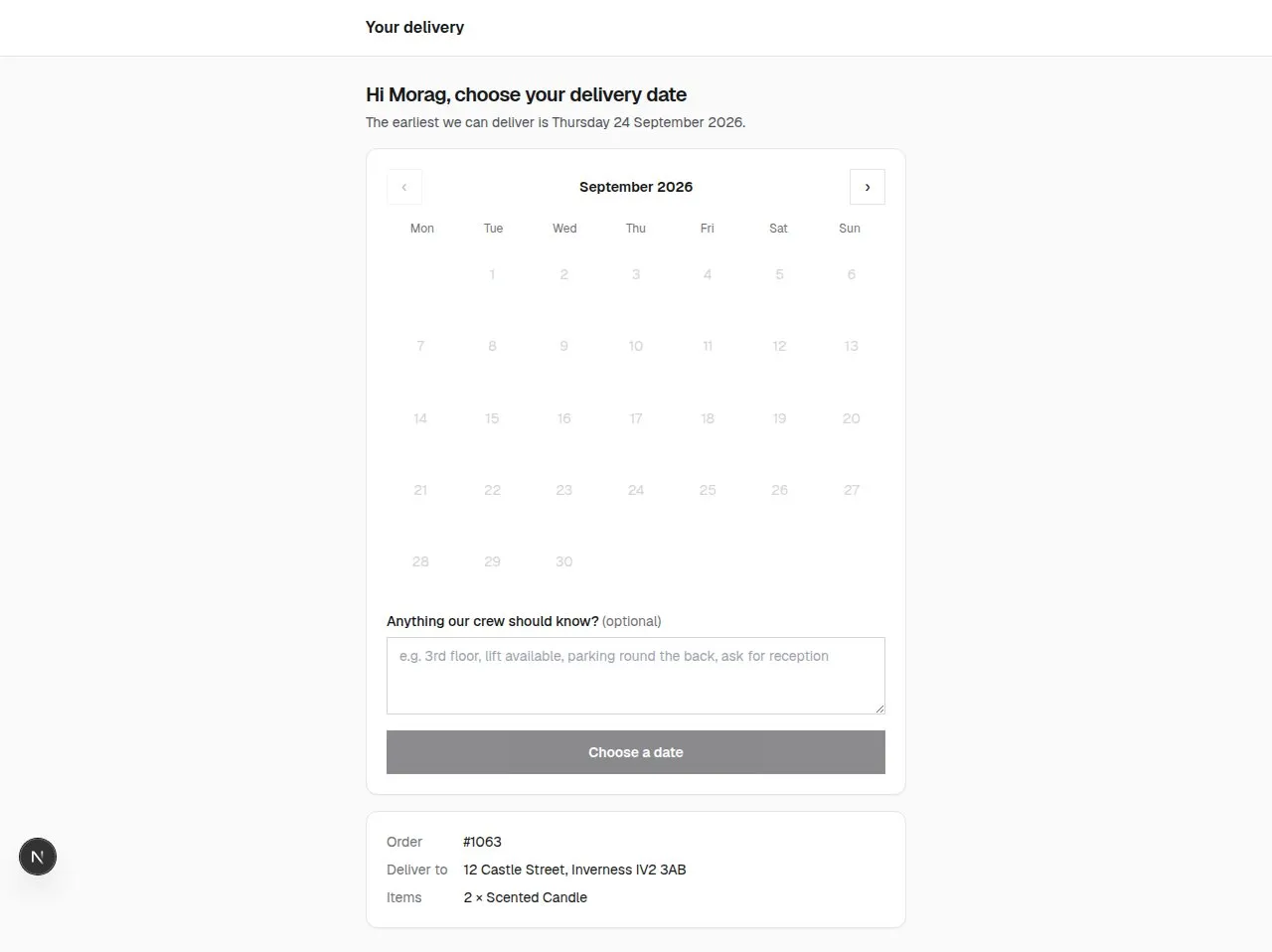
The link opens a simple page with your business name, a calendar of available dates and — if you use slots — morning or afternoon. They can add notes for the crew, such as “third floor, lift available”, then confirm.
3. Confirmation, changes and reminders
A confirmation email follows straight away. The same link lets them change the date until your reschedule cut-off; after that the page asks them to phone you, using the number in Settings → Your business. A reminder email goes out before the day.
4. Change the wording of the emails
Settings → Customer emails has four emails you can reword:
- Booking link — sent when the order arrives.
- Confirmation — sent when a date is booked.
- Reminder — sent before the delivery.
- Delivery moved — sent when a date changes.
Placeholders such as {{customer_name}}, {{order_number}} and {{date}} are filled in for you. The layout, the “Choose a delivery date” button and the delivery details are added automatically.
5. Add a “Manage my delivery” page
Add the Manage my delivery block to any page — your Delivery information page is a good home. Customers who’ve lost their email type their order number and email address, and their link is emailed to them again.
Where to find it. Plugin blocks for pages and the cart are added from the page builder’s Plugins tab. If Delivery & Installation isn’t listed there on your store yet, email support@rocketworks.dev and we’ll help you get it on your page.
Good to know
- Resending a link from the Unbooked tab makes older links stop working, so customers should always use the newest email.
- The booking is written onto the Orbit order too: tags such as
delivery-bookedanddelivery-2026-09-15-am, plus Delivery date and Delivery slot order custom fields.
Delivery & Installation£39.99 a month · 14-day free trial · billed through Orbit