AI Product Recommendations for Orbit Commerce — Rocketworks
AI Product Recommendations
Recommendations that learn from your shoppers.
Grow your average order with suggestions learned from real behaviour on your store: “You may also like” on product pages, trending products on your home page and cart, and similar products from the very first day.
Recommendations that learn from your shoppers.
Learns from real behaviour
Every product view and every order becomes a signal, and the model rebuilds itself every six hours.
Three placements
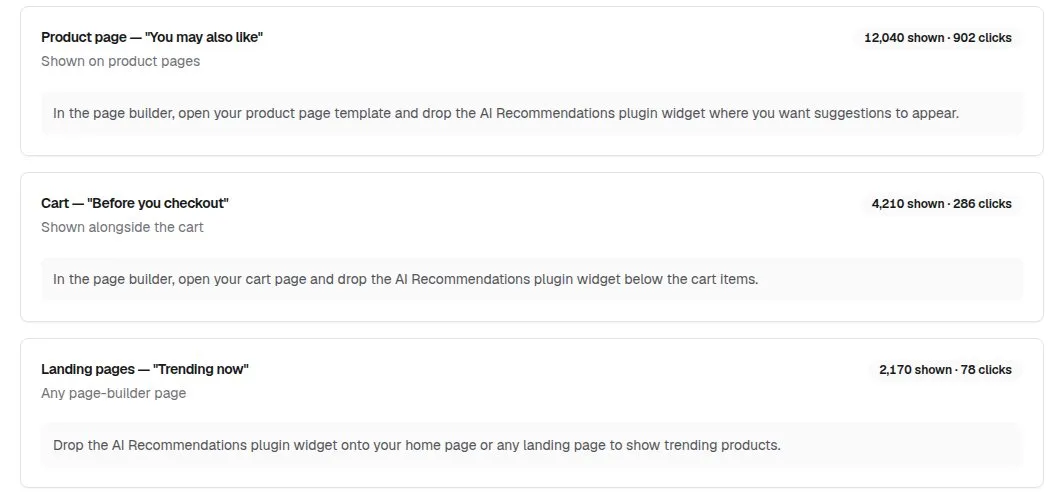
“You may also like” on product pages, “Trending now” on any page and “Before you checkout” on the cart.
Useful from day one
Before you have any sales history, it matches products that share tags and categories.
Tune the mix
Balanced, purchase-led or discovery weighting, 2 to 8 products per widget, and out-of-stock items left out.
See what it earns
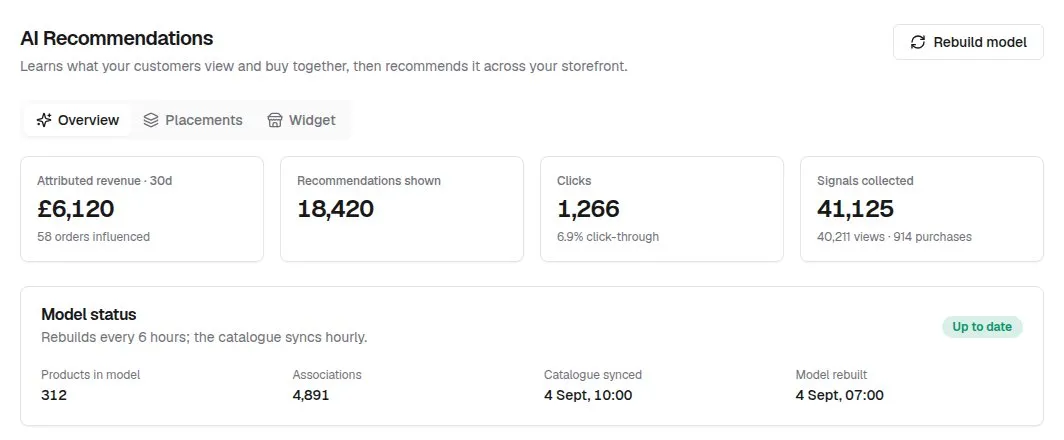
Recommendations shown, clicks and the sales of products shoppers clicked, over the last 30 days.
Read-only
It never changes your products, prices, stock, orders or customers.
Set up once, then it just runs.
Install and open it
Install from the Orbit plugin store and open it once to connect your store.
Build the first model
Press Rebuild model and your first recommendations are ready in about a minute.
Add the widgets
Put “You may also like” on your product page template, and trending products on your home page and cart.
Watch it learn
Views and orders feed the model, and the Overview shows what shoppers click.
The real screens.
Click any screenshot to see it full size.
Learn AI Recommendations step by step.
6 tutorials with screenshots, from setting up to the everyday jobs.
All AI Recommendations tutorialsAI Recommendations questions, answered.
Does it work on a brand-new store?
Yes. Product pages start with similar products — ones that share tags and categories — as soon as the first model is built. Trending and cart suggestions appear once shoppers have viewed or bought something.
Will it recommend things that are out of stock?
Not unless you want it to. Out-of-stock products are left out by default.
Does it change my catalogue?
No. Every permission it asks for is read-only.
How is the revenue figure worked out?
When an order comes in, any line for a product that someone clicked in a recommendation in the previous seven days is credited. Treat it as a guide rather than an exact figure.
Try AI Recommendations free for 7 days.
£39.99 a month after your trial, billed by Orbit. Cancel whenever you like.