Quick Order Pad for Orbit Commerce — Rocketworks
Quick Order Pad
Trade orders by the hundred, in a minute.
Let trade buyers order the way they already work: type product codes, paste a list straight from Excel, or upload a CSV or Excel order sheet. Every line is checked before it reaches the basket, so a 60-line restock takes a minute instead of an afternoon.
Trade orders by the hundred, in a minute.
Type-ahead by code
Find products by SKU, name or barcode as you type. Enter moves straight to the next line.
Paste from Excel
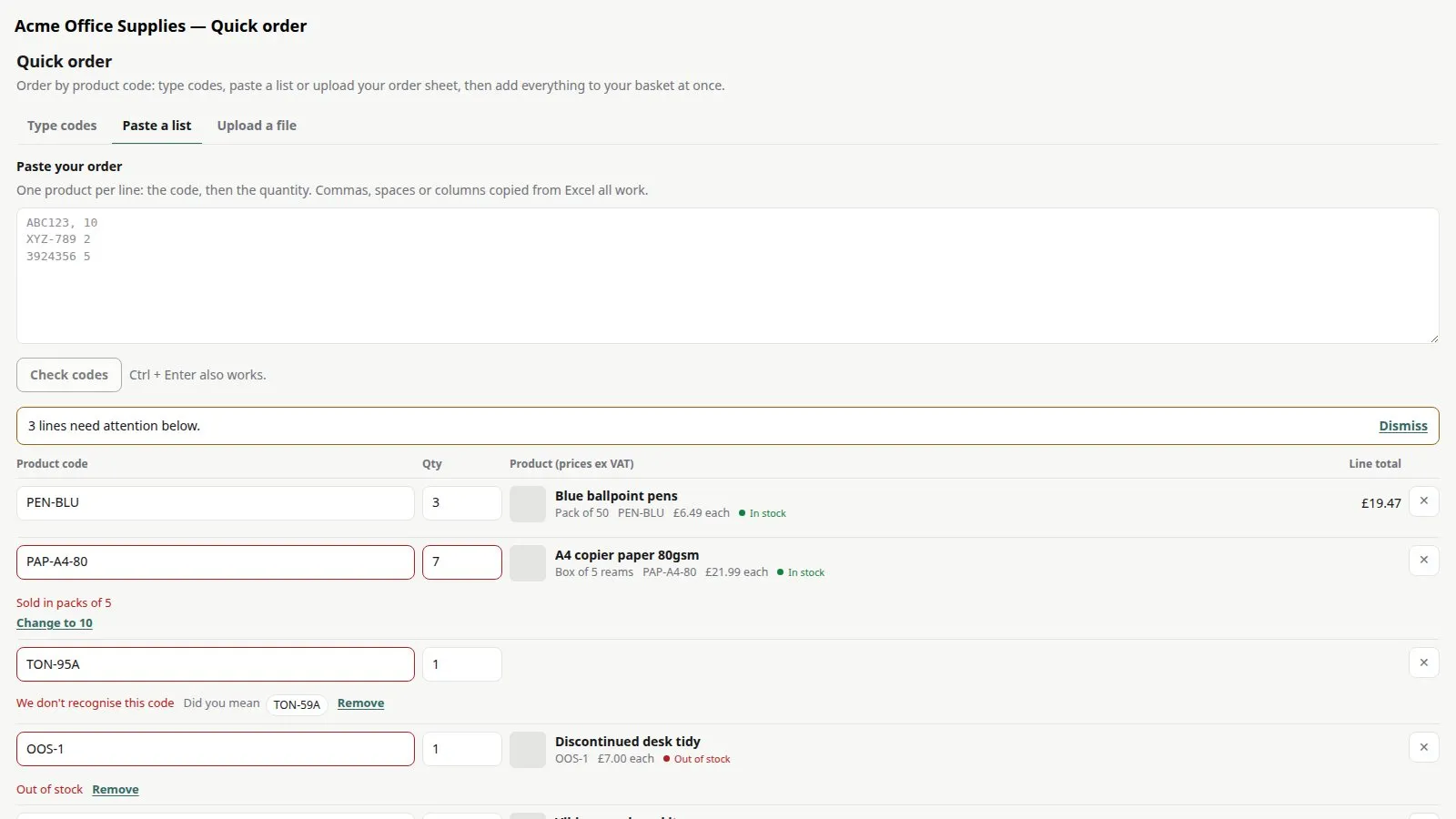
Paste a list in almost any shape — code and quantity, columns from Excel, even “10 x ABC123”.
CSV and Excel upload
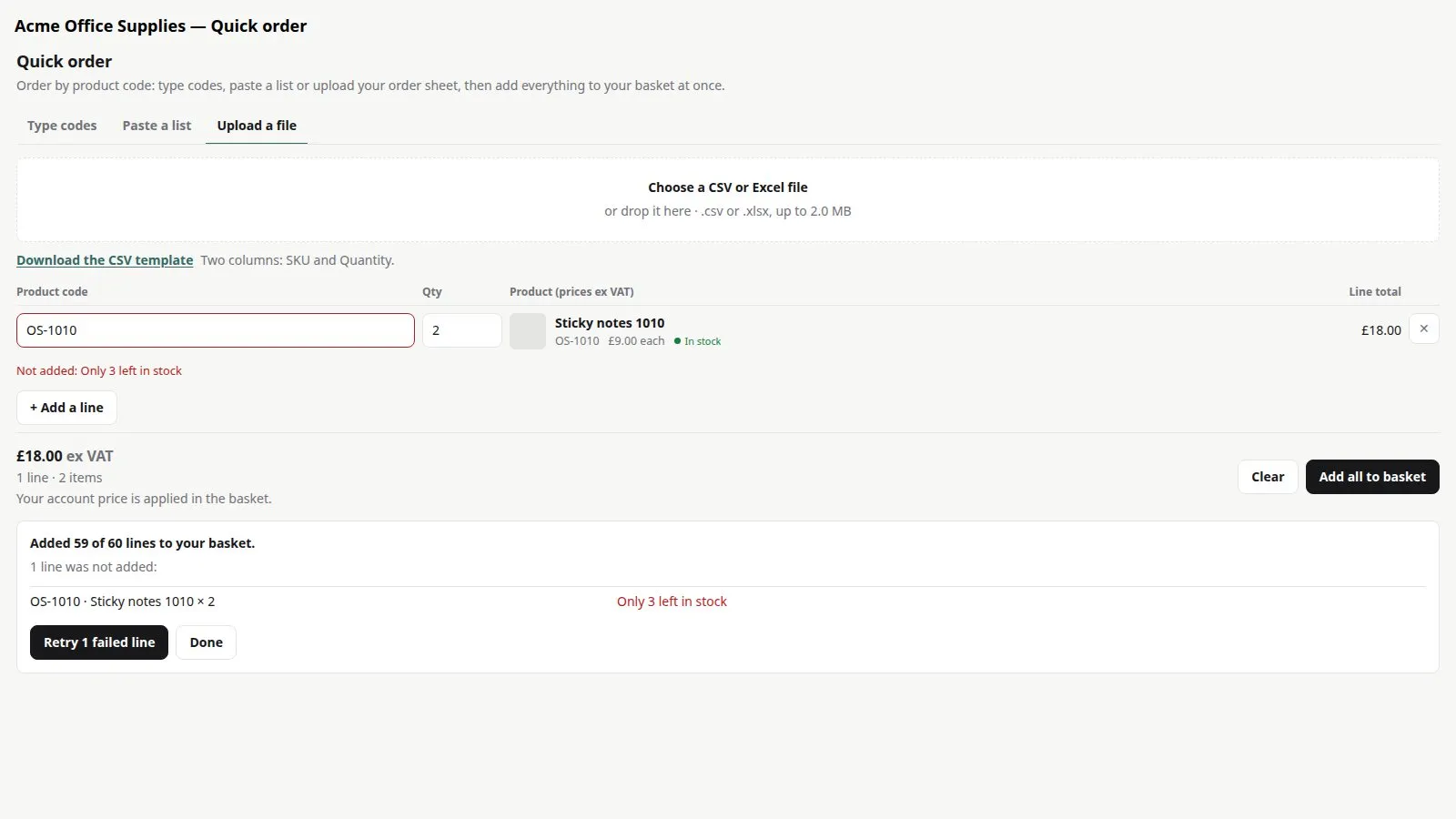
Upload a sheet of up to 2 MB. The columns are found for you, and there’s a template to download.
Every line checked
Unknown codes get “Did you mean”, and stock, minimums and pack sizes are fixed in one click.
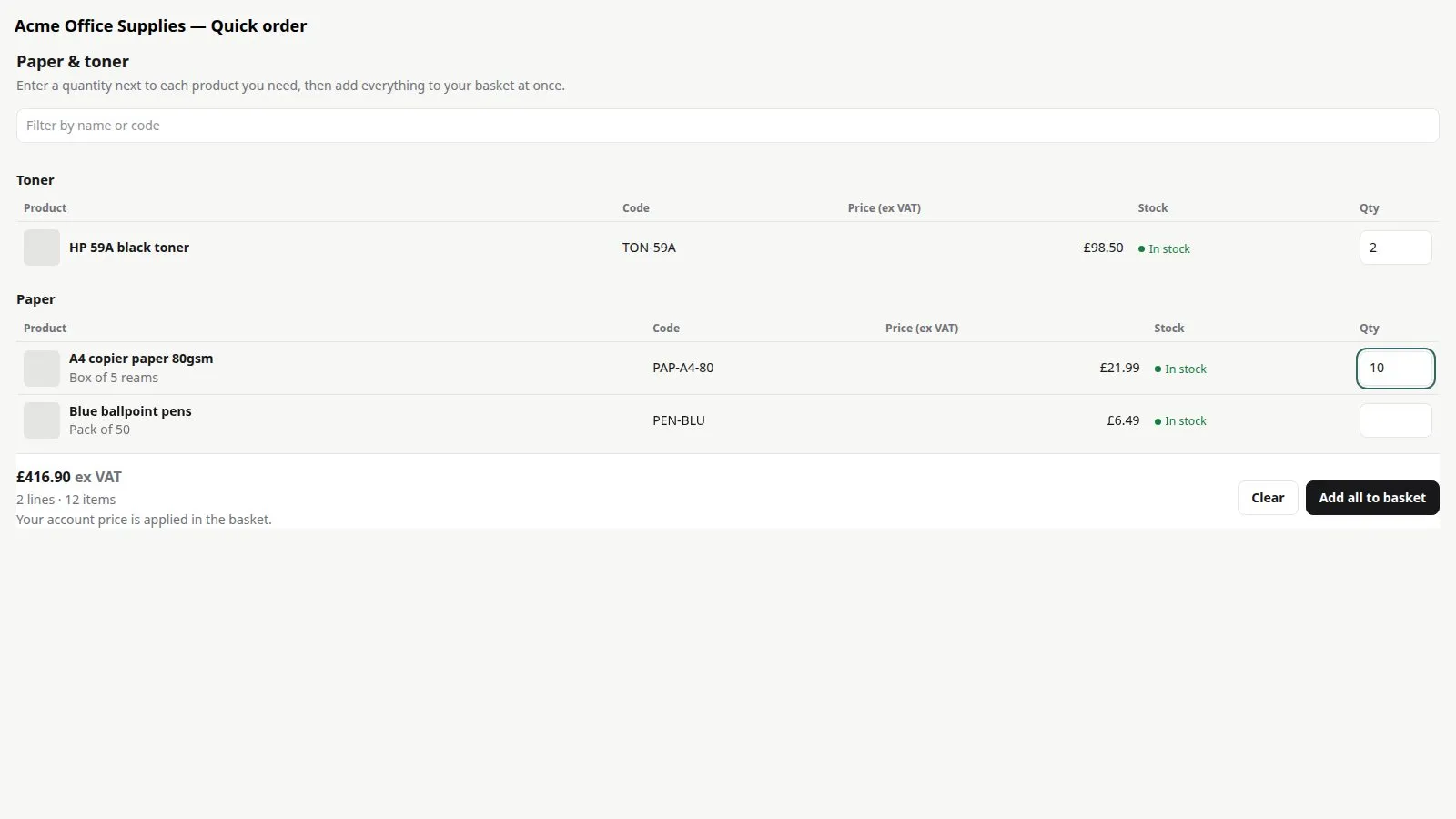
Category order forms
Every product in the categories you choose, each with a quantity box, like a printed order form.
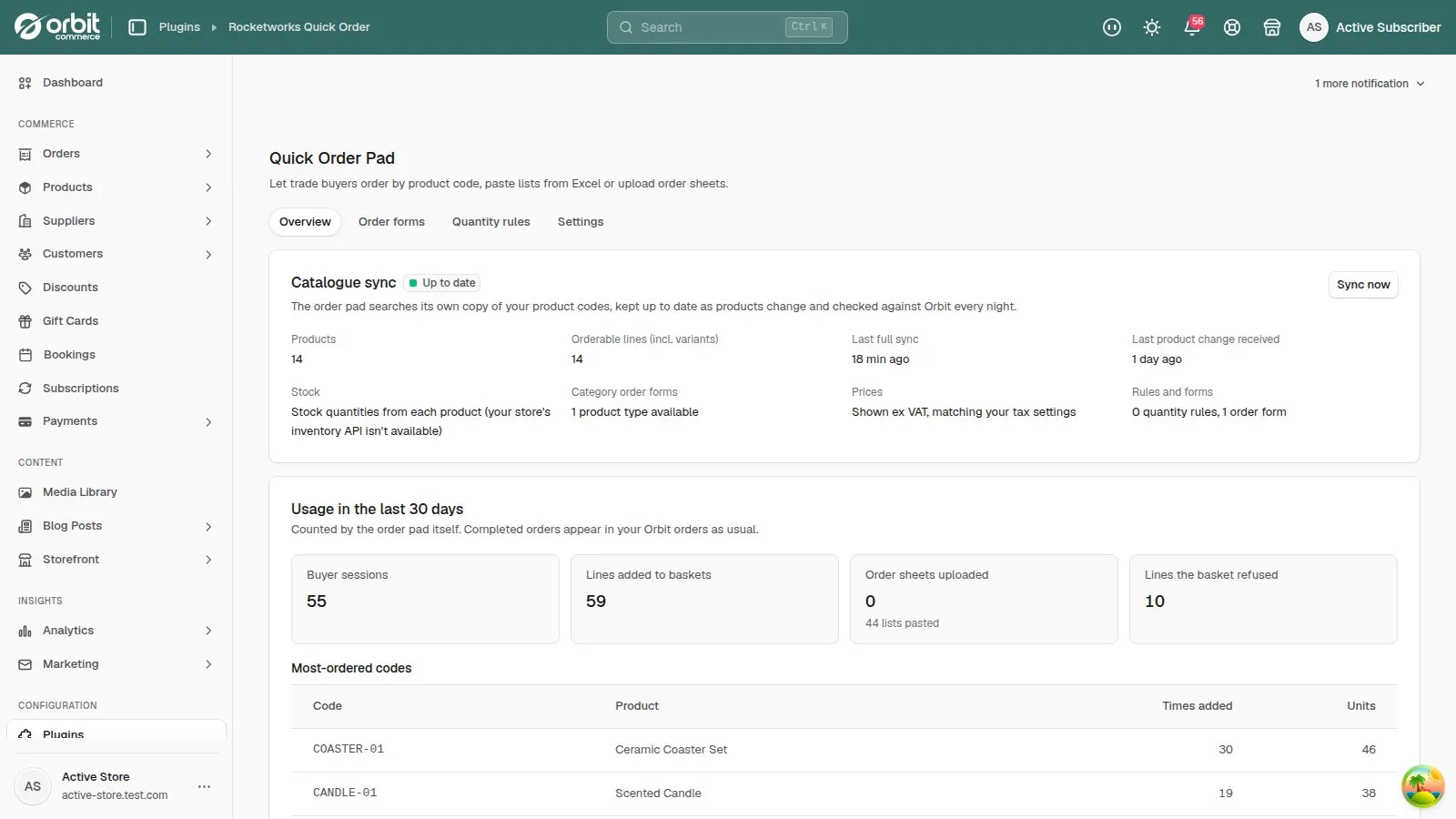
See what gets ordered
Sessions, lines added and your most-ordered codes over the last 30 days.
Set up once, then it just runs.
Install it
It copies your product codes so it can look them up instantly.
Add the pad to a page
Most stores add a “Quick order” page to their menu.
Set your rules
Minimums, maximums and pack sizes by product, category or tag.
Buyers order in bulk
They type, paste or upload, fix any flagged lines and add the lot.
The real screens.
Click any screenshot to see it full size.
Learn Quick Order Pad step by step.
7 tutorials with screenshots, from setting up to the everyday jobs.
All Quick Order Pad tutorialsQuick Order Pad questions, answered.
Do trade customers see their own prices?
The pad shows your public prices and says so. Their account prices are applied in the basket as usual.
Which codes does it use?
Your products’ SKUs. It also finds products by barcode and by name.
Does it work on every Orbit plan?
Yes.
Can buyers save order lists?
Not yet. That needs Orbit to tell plugins which customer is signed in.
Try Quick Order Pad free for 14 days.
£19.99 a month after your trial, billed by Orbit. Cancel whenever you like.