The earliest delivery date a customer can pick is the order date plus a number of working days. In this tutorial we’ll set your default lead time and any exceptions, then choose your booking rules, time slots and the dates you can’t deliver.
Steps in short
- Enter a Default lead time in working days.
- Add longer lead times for a category, brand or product.
- Set how far ahead customers can book, notice, cut-off and reminders.
- Decide whether customers pick a morning or afternoon slot.
- Add closures under Settings → Blackout dates.
1. Set your default lead time
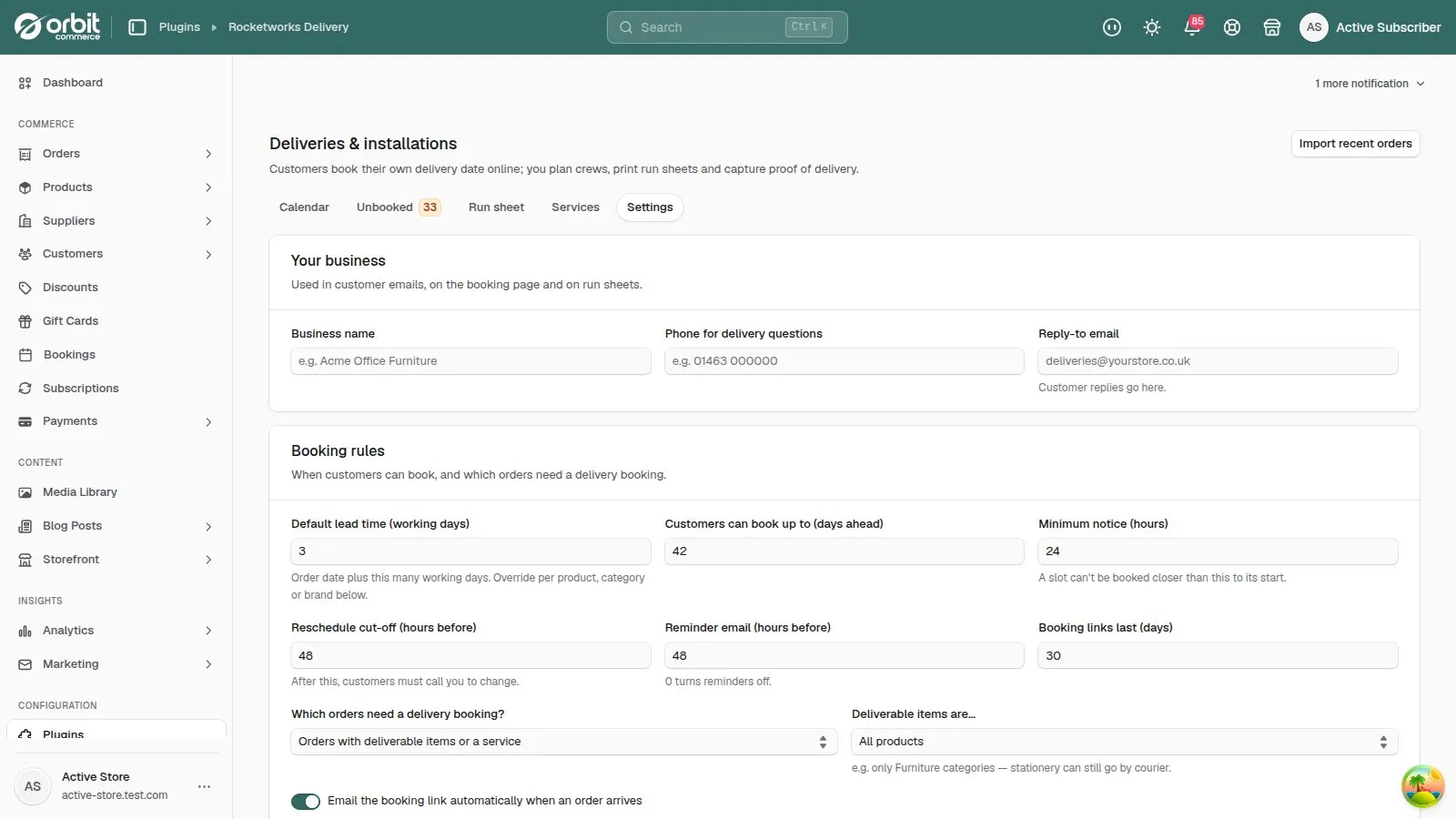
Go to Settings → Booking rules and set Default lead time (working days) — 3 is a common start.
Working days are Monday to Friday, and bank holidays are skipped automatically using the right calendar for the delivery address: England & Wales, Scotland (2 January, St Andrew’s Day and the early-August holiday) or Northern Ireland (St Patrick’s Day and 12 July).
2. Add lead-time exceptions
In Settings → Lead times, add exceptions for a category (for example Made-to-order desks: 15 days), a brand, or a specific product.
A product rule beats a category rule, which beats a brand rule. An order with several items waits for the slowest one.
3. Choose your booking rules
Still in Settings → Booking rules:
| Setting | What it means | A sensible start |
|---|---|---|
| Customers can book up to | How far ahead they can choose | 42 days |
| Minimum notice | No booking closer than this to the slot starting | 24 hours |
| Reschedule cut-off | After this, customers must call you to change | 48 hours |
| Reminder email | Sent this long before the delivery (0 turns it off) | 48 hours |
| Booking links last | How long an unused booking link works | 30 days |
| Which orders need a booking? | Every order with deliverable items, or only orders that include a service | Deliverable items |
| Deliverable items are… | For example only your furniture categories — stationery can still go by courier | All products |
| Email the booking link automatically | Sends the link the moment an order arrives | On |
4. Choose morning and afternoon slots
In Settings → Time slots, choose whether customers pick a morning or afternoon slot or just a date, and set what the slots are called and when they start. Your capacity follows this choice: jobs per slot with slots on, jobs per day with them off.
5. Block the dates you can’t deliver
For longer closures such as Christmas, use Settings → Blackout dates and block a range. To block a single day — a stocktake, say — click it on the Calendar and choose Block.
Good to know
- One-off bank holidays, like a coronation, aren’t in the calendars until they’re announced — add them as blackout dates.
- If a customer says there are no dates to choose from, check the lead time isn’t longer than Customers can book up to, that the region’s capacity isn’t
0on every day and that the dates aren’t blocked. You can always Book for customer yourself.
Delivery & Installation£39.99 a month · 14-day free trial · billed through Orbit