Product Bundles & Kits for Orbit Commerce — Rocketworks
Product Bundles & Kits
Kits, boxes and multipacks that sell themselves.
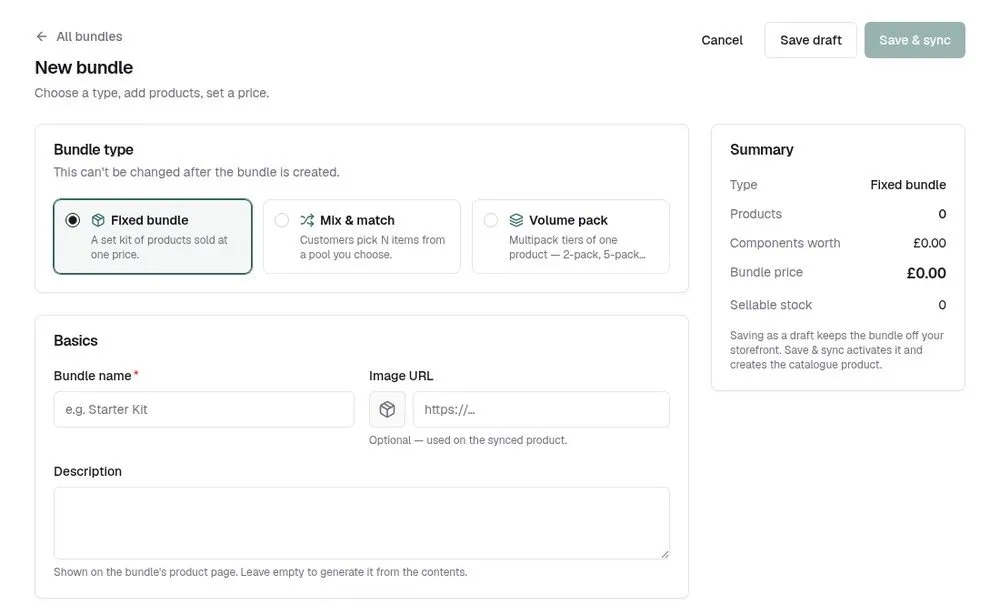
Fixed kits, mix & match boxes and volume packs, each created as a real product in your catalogue. They sell through your normal basket and checkout, and stock comes off every item inside when they do.
Kits, boxes and multipacks that sell themselves.
Three kinds of bundle
Fixed kits at one price, mix & match boxes where customers pick their items, and volume packs of one product.
Real products
Save & sync creates each bundle as a product in your catalogue. Nothing about your checkout changes.
Stock looks after itself
When a bundle sells, stock comes off every item inside. Cancel the order and it goes back.
Flexible pricing
A fixed price or a percentage off the items inside, with an optional cap on how many can sell.
Offers where they count
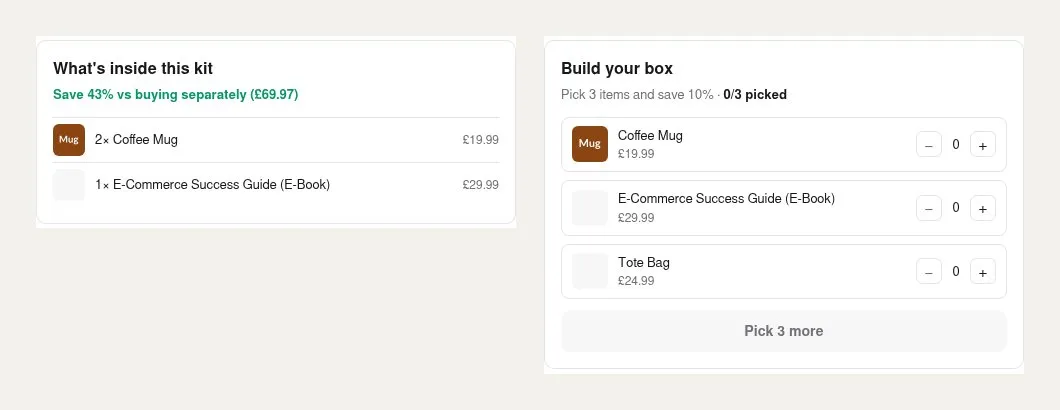
On the pages of items inside a bundle, shoppers see it offered as “Bundle & save”.
Sales at a glance
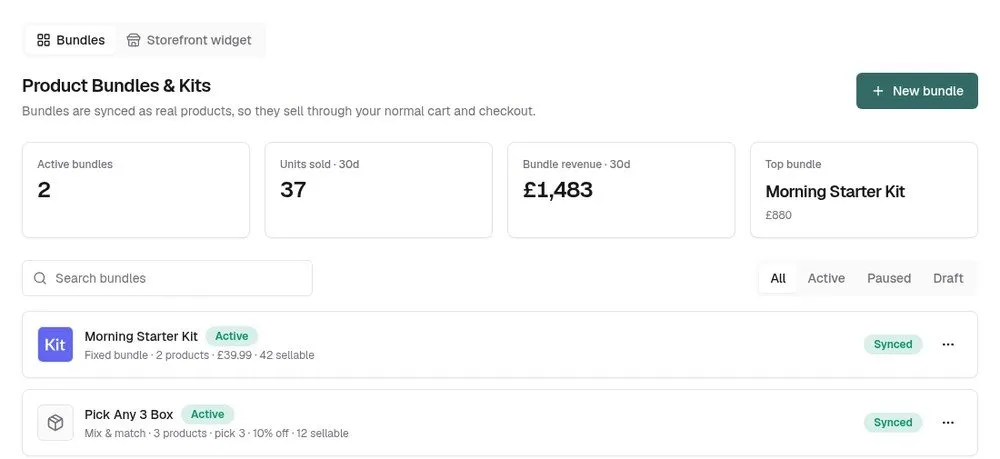
Units sold, bundle revenue and your top bundle over the last 30 days.
Set up once, then it just runs.
Choose a type
A fixed kit, a mix & match box or a volume pack.
Add what’s inside
Search your catalogue by name or SKU and set the quantities.
Set the price
A fixed price or a percentage off, and an optional stock cap.
Save & sync
It becomes a real product in your catalogue and goes on sale.
The real screens.
Click any screenshot to see it full size.
Learn Product Bundles step by step.
6 tutorials with screenshots, from setting up to the everyday jobs.
All Product Bundles tutorialsProduct Bundles questions, answered.
Do I need a different checkout?
No. Bundles are real products in your catalogue, so they sell through the basket and checkout you already have.
What happens to stock?
Stock comes off each item inside when an order with a bundle is placed, and goes back if the order is cancelled.
Can customers choose what goes in the box?
Yes, with a mix & match box. They pick from a pool you choose, and every possible box is a choice on the product.
Can I change a bundle’s type later?
No. Create a new bundle of the type you need, and pause the old one.
Try Product Bundles free for 7 days.
£19.99 a month after your trial, billed by Orbit. Cancel whenever you like.