The Bundle Offers widget does two jobs on your product pages. On a bundle’s own page it shows what’s inside. On the page of an item that belongs to a bundle, it shows the bundle as an offer — “Bundle & save”. In this tutorial we’ll add it to your product template.
Steps in short
- Add a Product Review element set to Product Bundles & Kits.
- Set the element’s Min Height to about 100 px.
- Bundle pages show what’s inside.
- Items inside a bundle show it as an offer.
1. Add the widget to your product template
In the page builder, open your product page template (Storefront → Templates, then the Products tab). From Elements → Single Product, add the Product Review element where you want the widget — despite its name, it shows any plugin’s product-page widget. In its Content settings, under Review Plugin, set Plugin to Product Bundles & Kits rather than leaving it on Auto (first available).
Below the add-to-basket button is a good spot.
2. Keep empty space to a minimum
Most of your products aren’t in a bundle, and on those the widget shows nothing.
The element keeps 400 px of space by default, even where the widget has nothing to show. Under Advance → Container, set Min Height to about 100 px — the widget still grows to fit what it shows.
Press Save, then Publish. Saving on its own keeps your changes as a draft, and the orange Unpublished changes pill reminds you they aren’t live yet.
3. What shoppers see on a bundle’s page
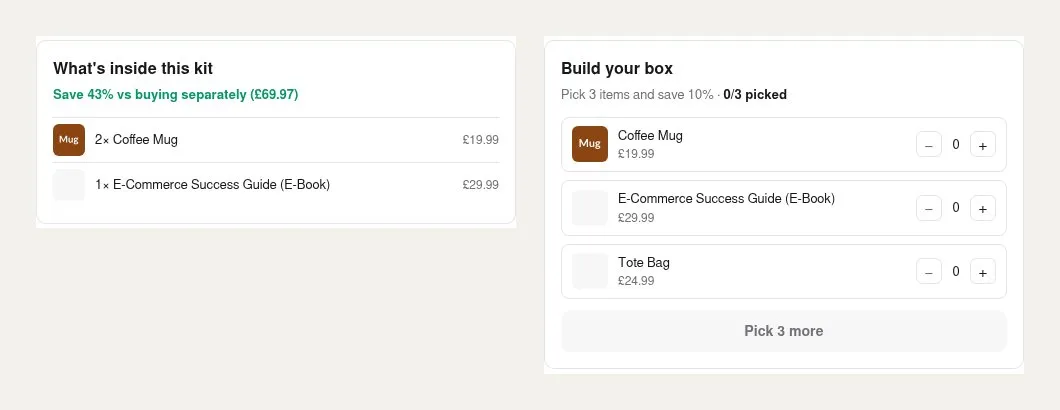
- Fixed bundle — “What’s inside this kit”, listing each item and quantity, with the saving against buying separately.
- Mix & match — “Build your box”, listing the items in the pool with their prices.
- Volume pack — “Buy more, save more”, listing the pack sizes.
Shoppers choose a pack size or selection in the product’s own options and add it to the basket with your normal button.
4. What shoppers see on an item’s page
On the page of a product that’s in an active bundle, the widget shows a card for each bundle it belongs to, headed “Bundle & save”, with the bundle’s price and saving — for example “2 products · save 43%”. Link your bundle products from menus or collections too, so shoppers can reach them directly.
Good to know
- Only Active bundles that have been synced appear.
- The widget runs in a frame on your page, so it uses its own clean styling on a light background.
Product Bundles & Kits£19.99 a month · 7-day free trial · billed through Orbit