A fixed bundle is a set kit — a starter kit, a gift set, a desk bundle — sold at one price. Every bundle becomes a real product in your Orbit catalogue, so it sells through the basket and checkout you already have, and stock comes off the items inside when it sells.
In this tutorial we’ll build a kit from start to finish.
Steps in short
- Open Bundles and press New bundle.
- Give it a name, and optionally an image link and a description.
- Add at least two products and set how many of each go in every kit.
- Choose a fixed price or a percentage off the items inside.
- Press Save & sync to put it on sale.
1. Start a new bundle
Open Bundles from your dashboard sidebar, under Installed Plugins. The first visit connects the plugin to your store — until then it can’t sync or receive anything from your store, so do it straight after installing.
Press New bundle. Under Bundle type, choose Fixed bundle — “A set kit of products sold at one price”. The type can’t be changed after the bundle is created.
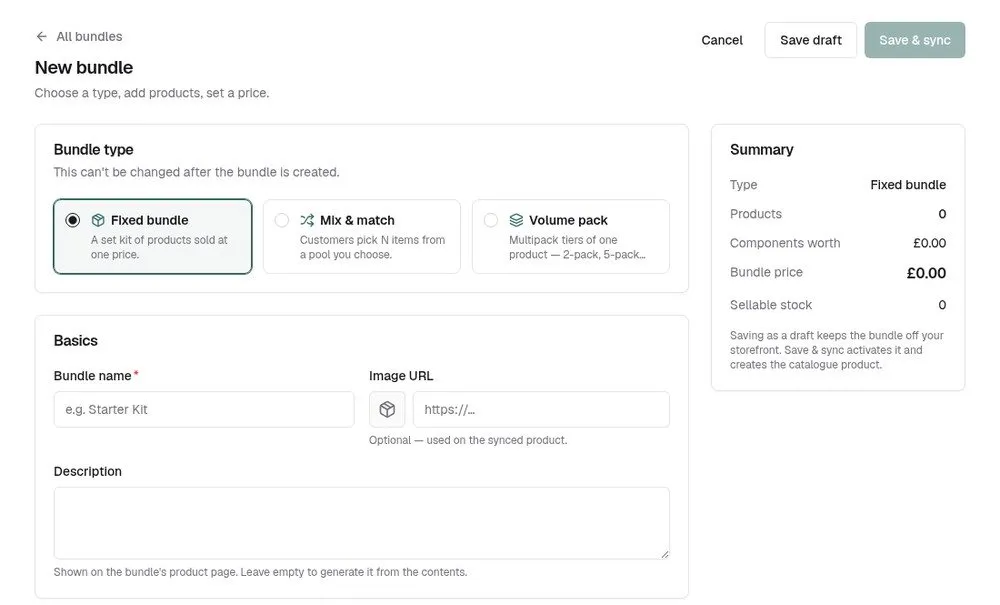
2. Fill in the basics
- Bundle name — required, for example “Starter Kit”.
- Image URL — optional. Paste a link to an image; it’s used when the catalogue product is first created.
- Description — optional. Leave it empty and one is written for you from the contents, such as “This kit includes: 2× Coffee Mug, 1× E-Book.”
3. Add what’s in the kit
Under Kit contents, press Add products and search by name or SKU. A product with variants can be added as a specific variant — do that when you want stock taken from one particular variant. Set a Qty for each product: how many go in every kit.
A fixed bundle needs at least two products. Under the list you’ll see what they’re worth bought separately.
4. Set the price
In Pricing, choose a Pricing mode:
- Fixed price — type the Bundle price.
- % off components — type a Discount, and the price follows the items’ own prices. For example, 2 × £10 and 1 × £20 at 25% off sells for £30.
Add a Stock cap if you want to limit how many kits can be sold. The Summary shows what the items are worth, your bundle price, the customer’s saving and how many kits your stock can make.
5. Save and sync it
Save & sync makes the bundle Active and creates its product in your catalogue — you’ll see “Bundle synced to your catalog”. Save draft keeps a new bundle off your storefront while you work on it.
The product gets a SKU starting BND- and a web address starting /products/bundle-. Shoppers buy it with your normal Add to basket button.
Good to know
- The bundle product isn’t added to any collection or menu for you. Add it to a collection, or link to it, so shoppers can find it.
- Edit bundles here, not in Orbit’s product editor — the next sync overwrites the product’s name, description, price and stock.
- At least one item needs to track stock, or set a stock cap. If nothing limits it, the bundle syncs as sold out.
Product Bundles & Kits£19.99 a month · 7-day free trial · billed through Orbit