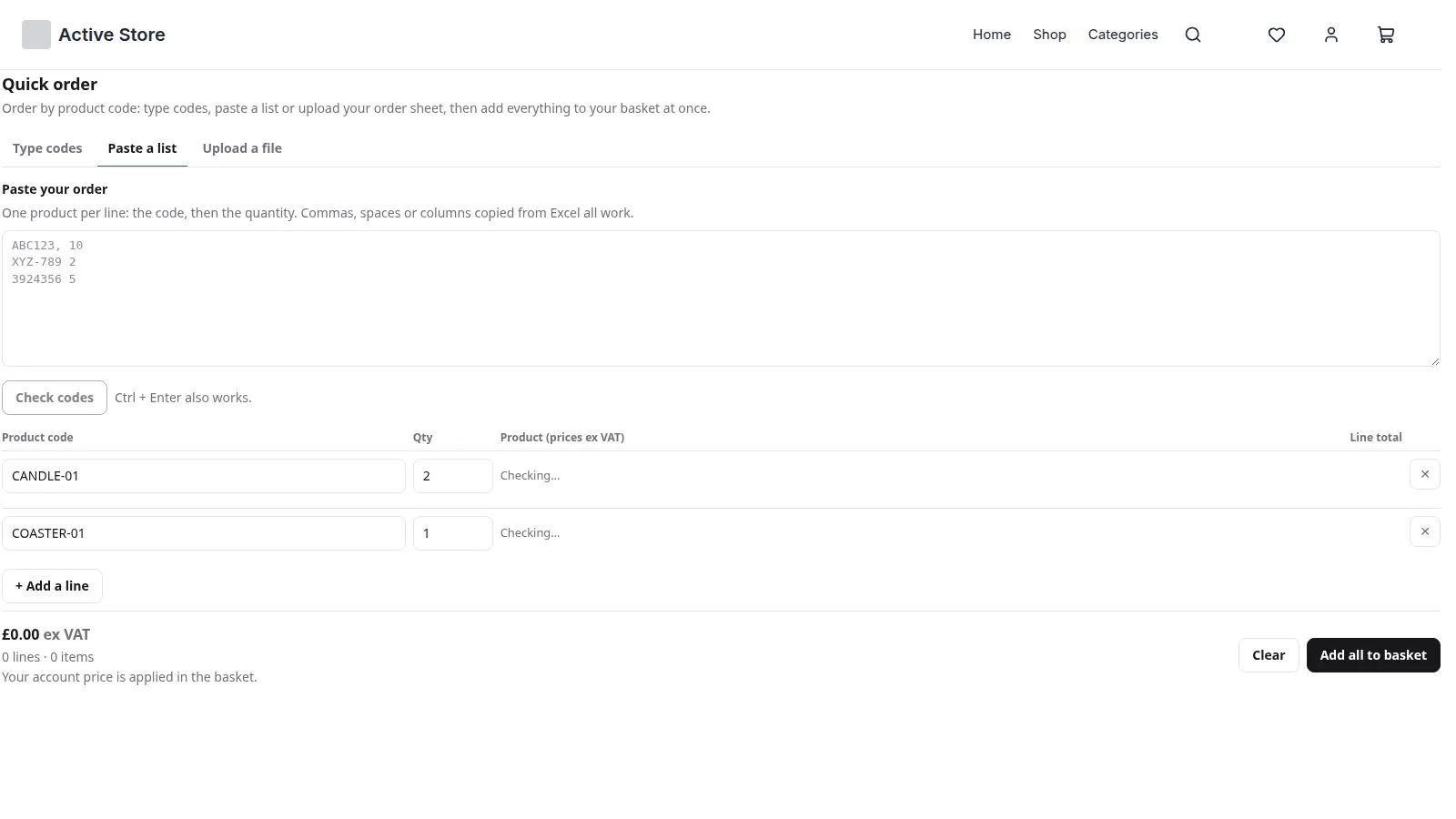
Quick Order Pad lets trade customers order the way they already do: by product code. They can type codes, paste a list from Excel or an email, or upload their order sheet, and every line is checked before anything goes into the basket. It works on every Orbit plan.
In this tutorial we’ll install it and put a quick order page on your store.
Steps in short
- Install Quick Order Pad from the Orbit plugin store.
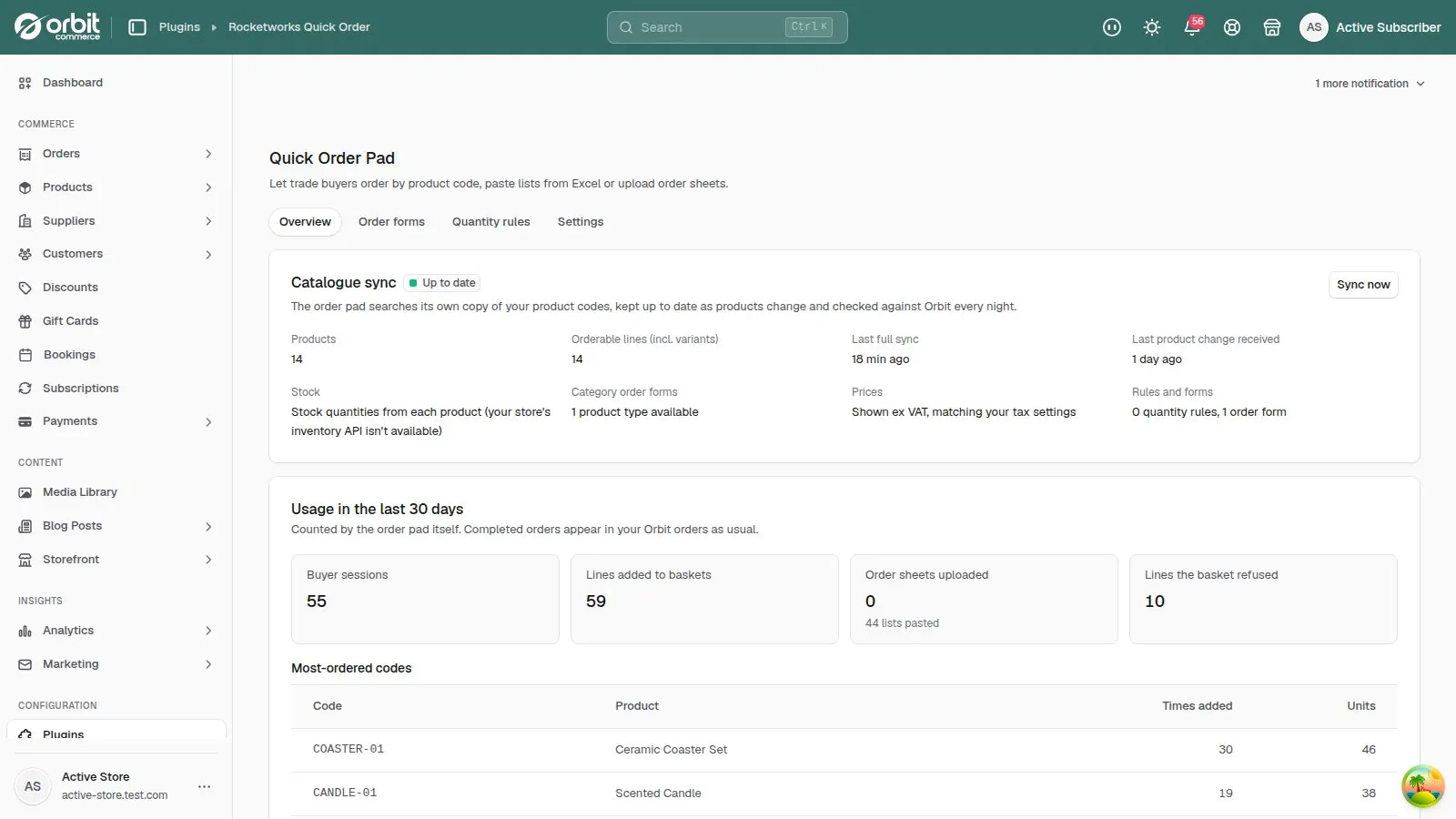
- Open Quick Order in your dashboard and wait for Up to date.
- Add the Quick Order Pad block and pick the order pad.
- Publish the page and add it to your main menu.
1. Install it from the Orbit plugin store
Find Quick Order Pad in the Orbit plugin store and install it. You get a 14-day free trial, then it’s £19.99 a month (or £199.99 a year). It only asks to read your products, categories, stock and tax setting — it never changes your catalogue.
2. Let it index your product codes
Open Quick Order in your dashboard’s side menu. The first time, it makes its own copy of your product codes so it can look them up instantly. This usually takes under a minute; the Overview tab shows Up to date when it’s done.
3. Add the pad to a page
- Create a page for it — Storefront → Pages → Create page; most stores call it “Quick order” — and open it in the page builder.
- Add the Quick Order Pad block to the page.
- In the block’s settings, under Order pad, pick Quick order pad (codes, paste, upload) — or one of your category order forms.
Where to find it. Plugin blocks for pages and the cart are added from the page builder’s Plugins tab. If Quick Order Pad isn’t listed there on your store yet, email support@rocketworks.dev and we’ll help you get it on your page.
4. Publish it and link to it
Press Save, then Publish. Then add it to your main menu: Storefront → Navigation, open your header menu (usually Main Menu), press Add menu item, pick the page under Link and press Save.
Good to know
- Your product codes are the SKUs on your products. The pad also finds products by barcode and by name. A product without a SKU can still be found by name, but can’t be pasted or uploaded by code.
- The pad adds to the basket on your live storefront. The page-builder preview has no basket, so the pad can’t add anything there.
Quick Order Pad£19.99 a month · 14-day free trial · billed through Orbit