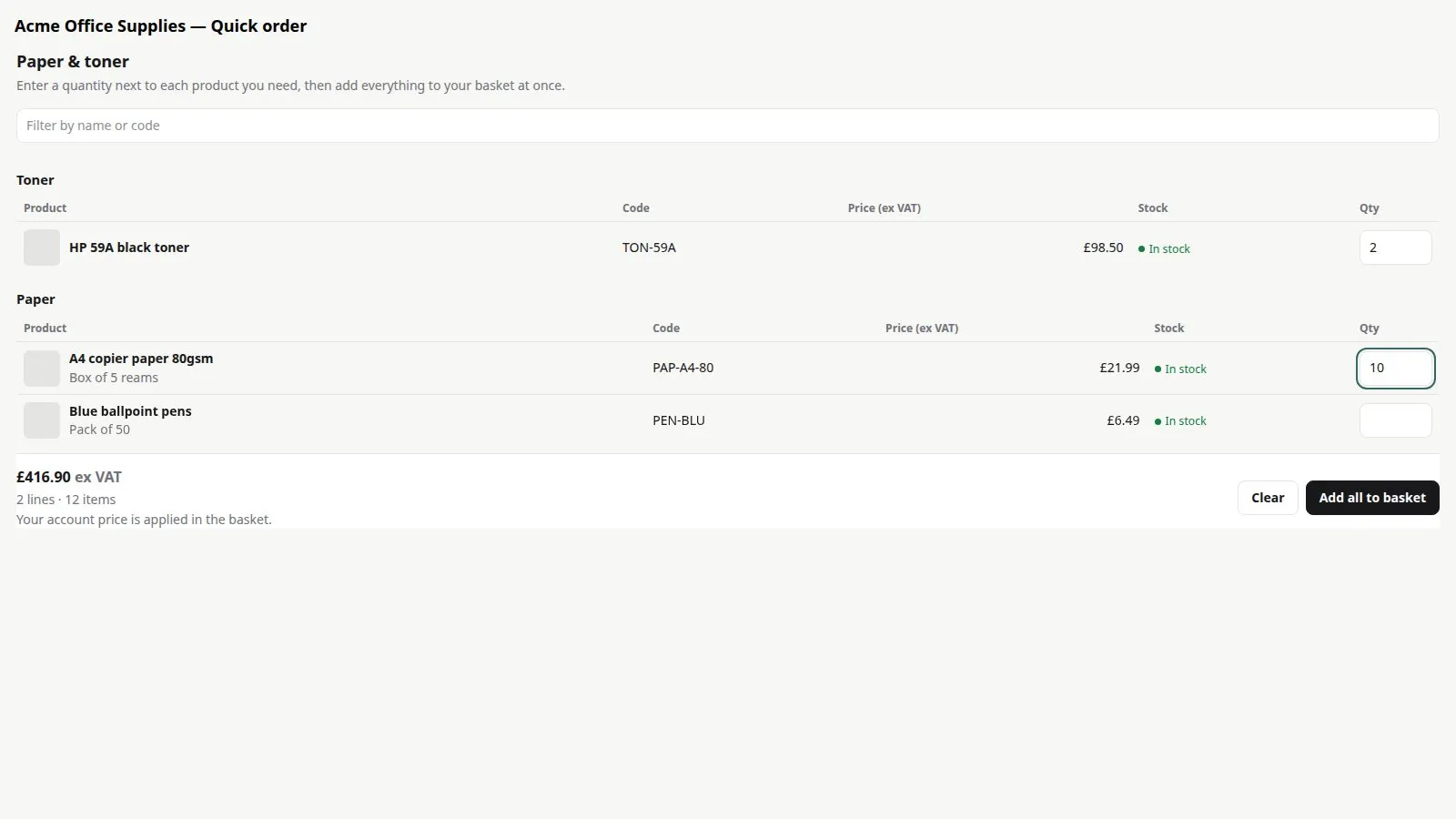
An order form works like a printed order form: every product in the categories you choose is listed with a quantity box. Buyers fill in quantities and add everything at once. In this tutorial we’ll create a form and put it on a page.
Steps in short
- Go to Order forms and press Create order form.
- Give it a name and tick the categories to include.
- Add the Quick Order Pad block and pick your form under Order pad.
1. Create the form
Open Quick Order in your dashboard’s side menu, go to the Order forms tab and press Create order form.
2. Name it and choose categories
Give it a name — buyers see this as the heading — for example Paper, toner & ink. Tick the categories to include, then save.
3. Add it to a page
In the page builder, add the Quick Order Pad block to a page and pick your form under Order pad. Press Save, then Publish.
Where to find it. Plugin blocks for pages and the cart are added from the page builder’s Plugins tab. If Quick Order Pad isn’t listed there on your store yet, email support@rocketworks.dev and we’ll help you get it on your page.
Good to know
- An order form shows up to 1,500 products. For bigger ranges, use more than one form, or the quick order pad.
- Your most-ordered codes on the Overview tab are a good guide to which categories deserve a form.
Quick Order Pad£19.99 a month · 14-day free trial · billed through Orbit