Settings control how the pad behaves and looks on your store. This tutorial goes through each one.
Steps in short
- Turn the Type codes, Paste a list and Upload a file tabs on or off.
- Set the heading and the maximum lines per paste or upload.
- Show stock numbers, or only in stock and out of stock.
- Match your store’s tax setting, or always show ex or inc VAT.
- Set the accent colour, button colour, corner rounding and font.
1. Choose the ways to order
Ways to order turns each tab on or off. Most trade stores keep all three.
2. Set the heading and line limit
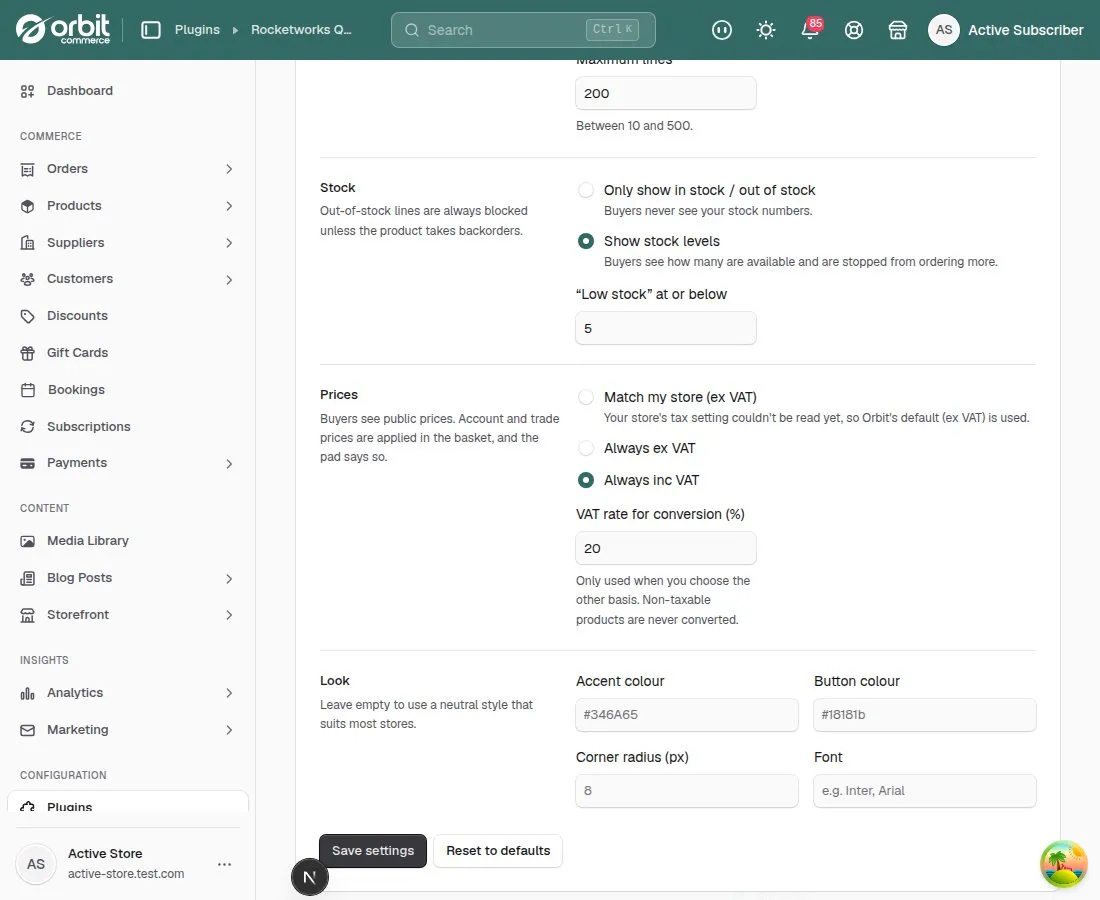
Heading is the title above the pad. Maximum lines is the most lines one paste or upload can add, between 10 and 500.
3. Choose how stock is shown
Stock: show exact stock levels, or only “In stock / Out of stock”. With stock levels shown, buyers are stopped from ordering more than you have. Out-of-stock lines are always blocked unless the product allows backorders.
4. Choose ex or inc VAT prices
Prices: match your store’s tax setting (read from your Orbit tax settings), or always show ex VAT or inc VAT. The VAT rate is only used to convert prices for the other option, and non-taxable products are never converted.
5. Match your store’s look
Look sets the accent colour, button colour, corner rounding and font so the pad matches your store. Leave them empty for a neutral style that suits most stores. Press Save settings when you’re done.
Good to know
- Reset to defaults puts every setting back to how it was when you installed.
Quick Order Pad£19.99 a month · 14-day free trial · billed through Orbit