The pad has three tabs, one for each way your buyers like to order. You can switch any of them off in Settings. This tutorial explains each one so you can tell your customers how to use it.
In short
- Type a code, pick the match and press Enter for the next line.
- Paste one product per line — code, then quantity.
- Upload a CSV or Excel file of up to 2 MB.
- Point buyers to Download the CSV template.
1. Type codes
Rows of product code and quantity. As buyers type, matching products appear, found by code, name or barcode. They use the arrow keys and Enter (or a click) to choose one, and pressing Enter in the quantity box starts the next line. Each line shows the product’s picture, name, variant, price and stock.
2. Paste a list
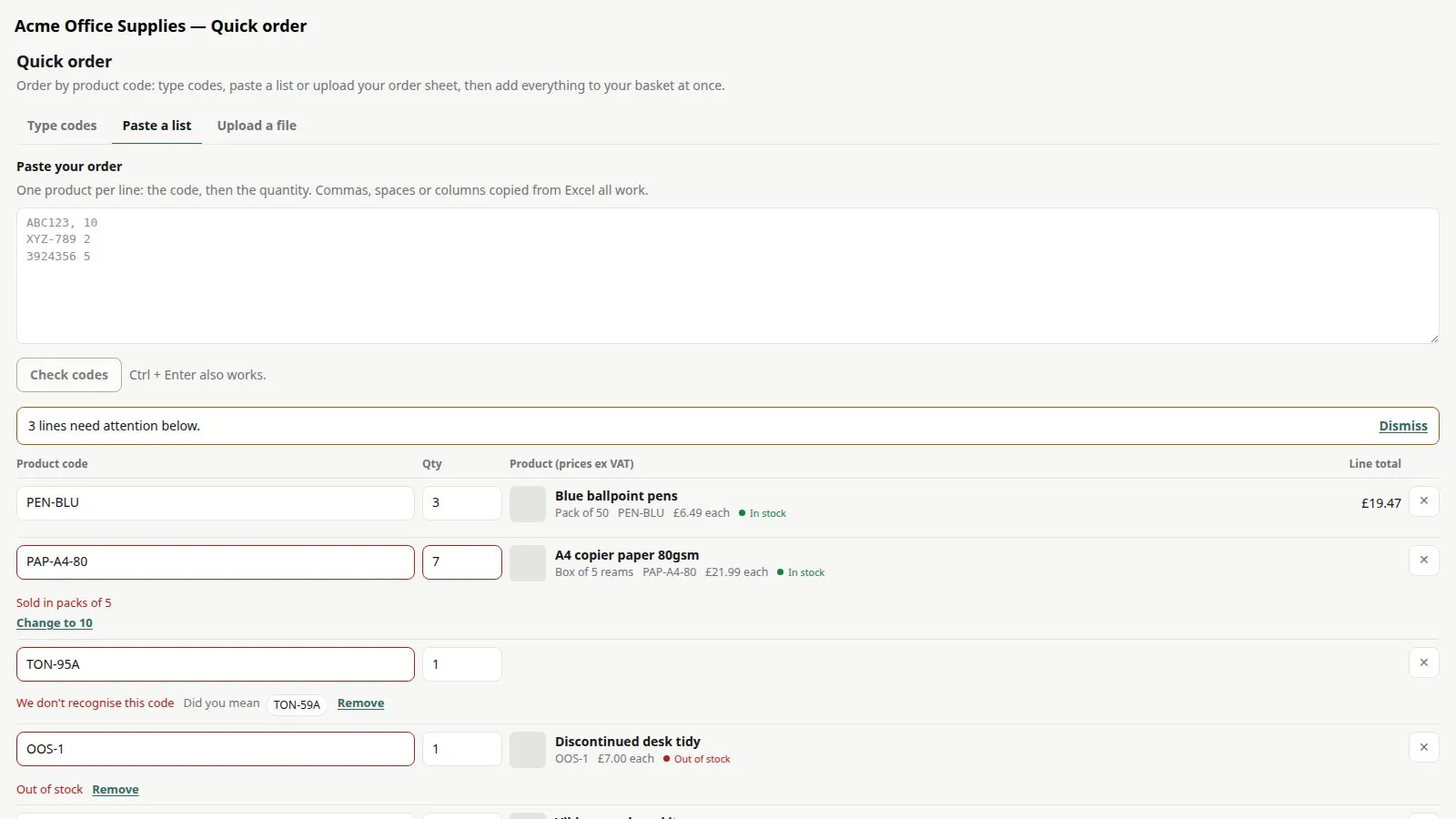
Buyers paste one product per line, with the quantity after the code. All of these work:
ABC123, 10
ABC123 10
ABC123	10        (columns copied straight from Excel)
10 x ABC123
ABC123            (a code on its own means 1)
Blank lines and a heading line such as “SKU, Qty” are ignored.
3. Upload a file
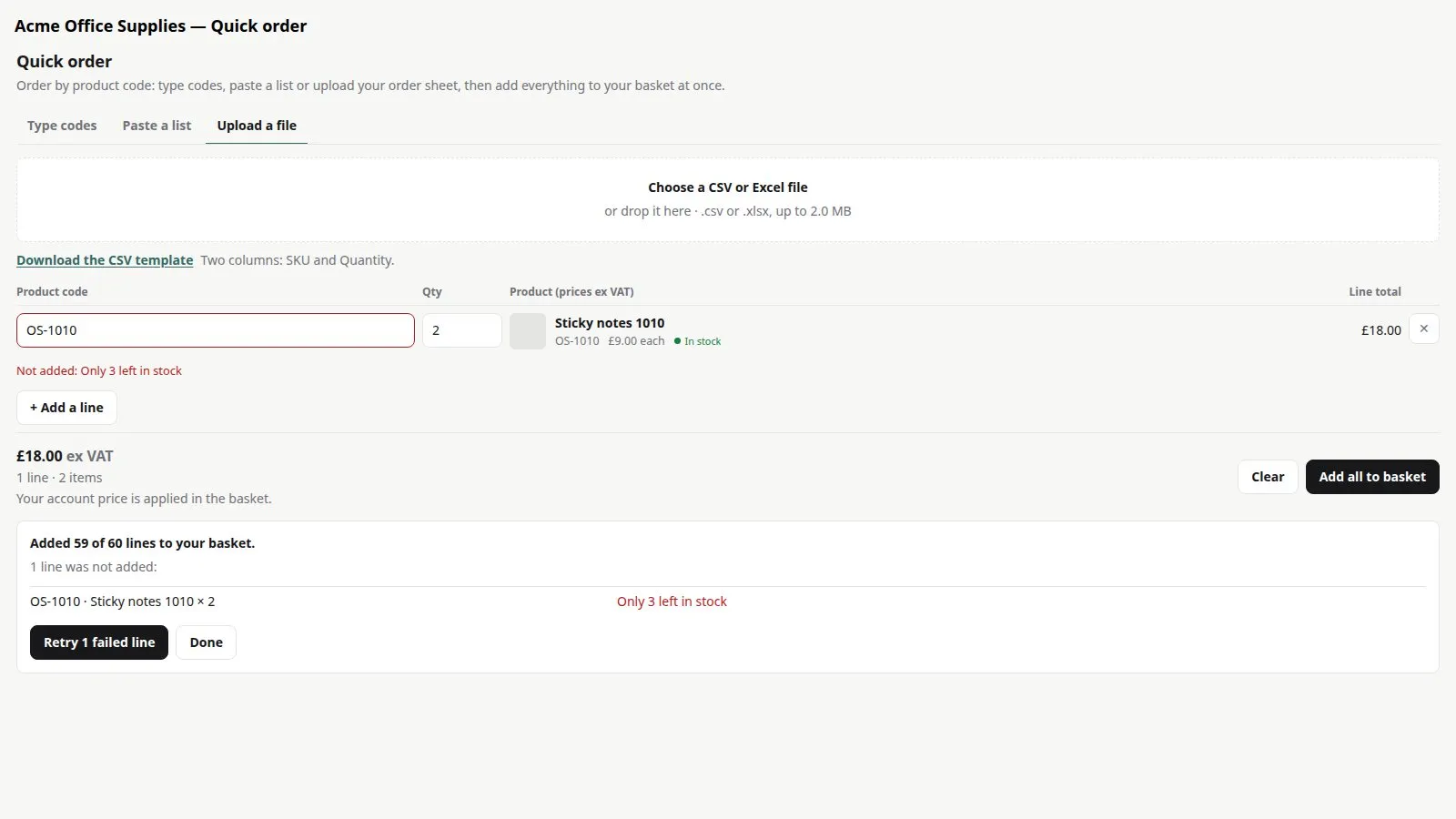
Buyers upload a CSV or Excel (.xlsx) file of up to 2 MB. The pad finds the product-code and quantity columns itself, recognising headings such as SKU, Product code, Item code, Part number and Qty. If it can’t tell which columns to use, it asks.
4. Share the CSV template
There’s a Download the CSV template link on the upload tab. It has two columns:
| SKU | Quantity |
|---|---|
| YOUR-CODE-1 | 10 |
| YOUR-CODE-2 | 2 |
Buyers replace the example rows with their own codes and quantities, one product per row. Any other columns — descriptions, prices, notes — are ignored.
Tip for your customers: if your codes start with a zero (for example 00123), format that column in Excel as Text before typing them, otherwise Excel removes the zero.
Good to know
- The most lines one paste or upload can add is set by Maximum lines in Settings (10 to 500).
- Saved lists such as “Monthly stationery” aren’t available yet — they need Orbit to tell plugins which customer is signed in.
Quick Order Pad£19.99 a month · 14-day free trial · billed through Orbit