Quantity rules make sure orders arrive in quantities you can actually pick and ship. The pad checks them before anything reaches the basket and offers the buyer a one-click fix. In this tutorial we’ll add a rule and explain which rule wins when several apply.
Steps in short
- Go to Quantity rules and press Add rule.
- Fill in any of minimum, maximum and pack size.
- A product rule beats a category rule, which beats a tag rule.
- The pad flags the line and offers a Change to … fix.
1. Add a rule
In Quick Order, open the Quantity rules tab and press Add rule. Choose what it applies to:
- One product — for example, chairs, maximum 4.
- A category — for example, paper, sold in packs of 5.
- Products with a tag — for example, everything tagged bulk, minimum 10.
2. Set the limits
Fill in any of Minimum quantity, Maximum quantity and Sold in packs of. Leave a box empty for no limit.
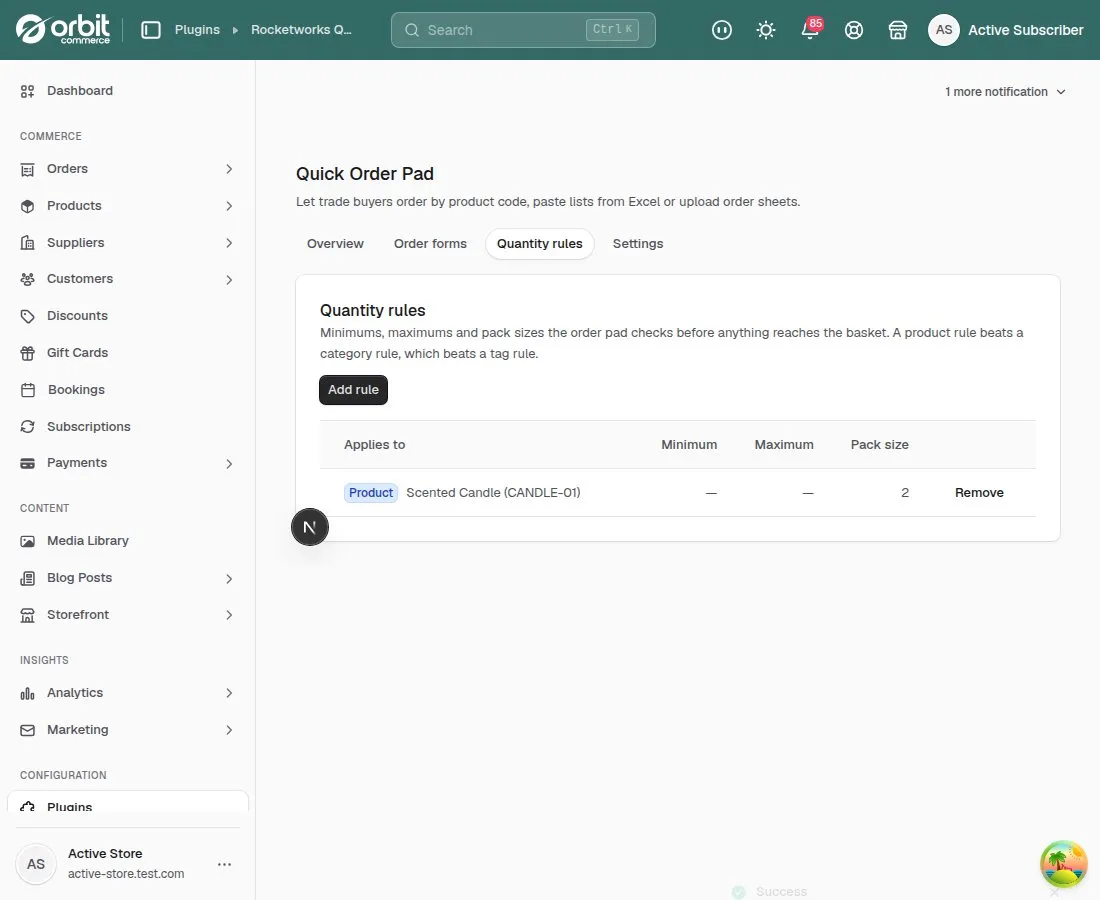
3. Know which rule wins
If more than one rule applies to a product, a product rule wins over a category rule, and a category rule wins over a tag rule. Rules combine where they don’t overlap: a product rule that only sets a maximum still uses its category’s pack size.
4. What buyers see
A line that breaks a rule shows Minimum order is 5, Maximum order is 40 or Sold in packs of 12, with a Change to … button. Pack sizes round up to the next full pack.
Good to know
- Rules apply to everything added through the pad — quick order, paste, upload and order forms.
Quick Order Pad£19.99 a month · 14-day free trial · billed through Orbit