A statement sums up a customer’s account: what they owed, what they bought, what they paid and what they owe now. Many businesses pay from statements, not invoices. This tutorial covers both styles, sending one, and monthly statements.
Steps in short
- Open items, or balance brought forward.
- Open the account, press Statement and Email it.
- A View your statement button, not an attachment.
- Switch on Send statements every month.
1. Choose a style
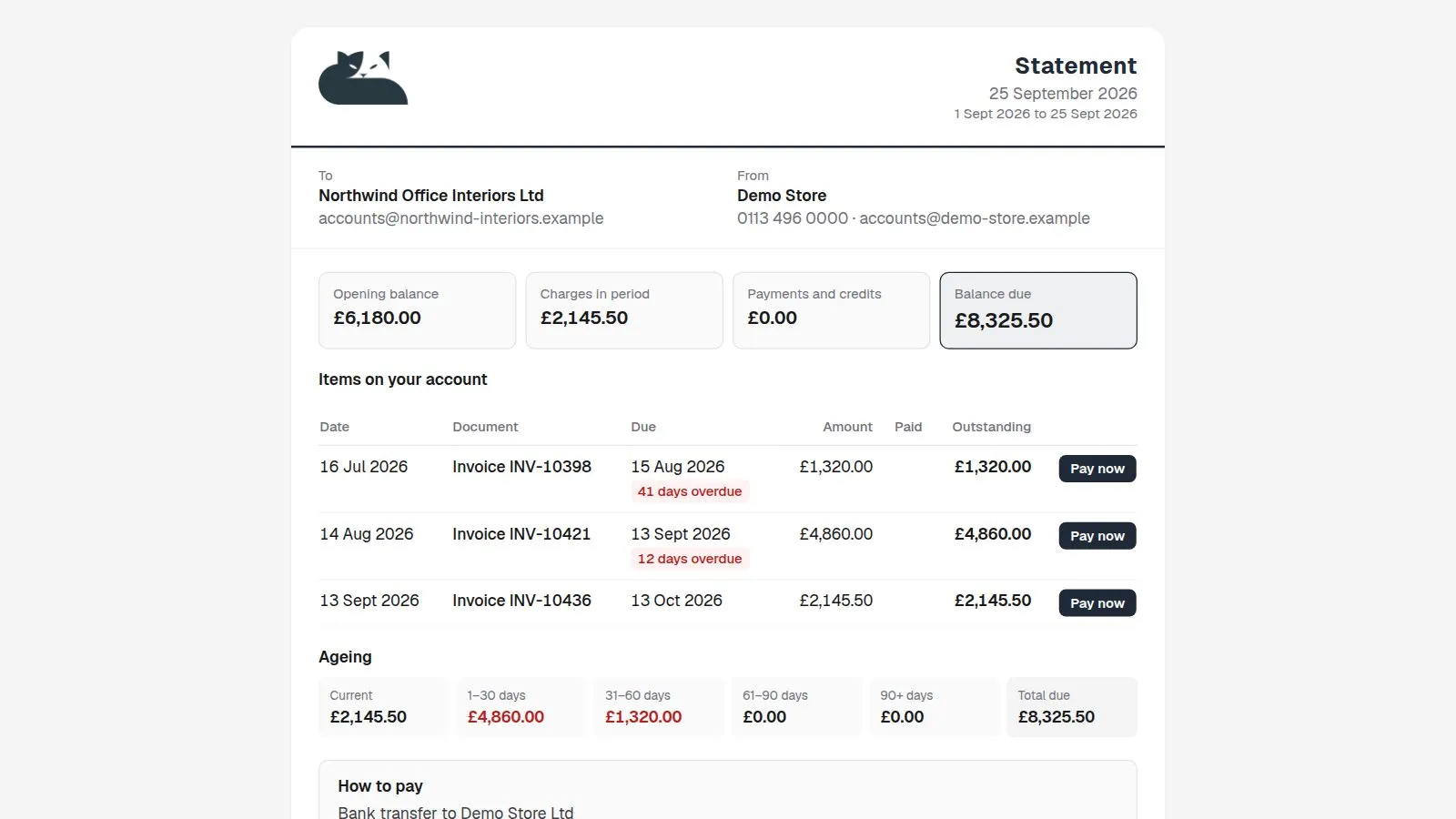
- Open items (the default) — everything still unpaid, oldest first, with part-payments and how late each one is.
- Balance brought forward — the opening balance, everything in the period with a running balance, and the balance due. It reads like a bank statement.
Both show the same ageing row at the bottom. Pick your default in Settings → Statements.
2. Send a statement
Open the account — from Aged debt, or from the customer’s page in Orbit — press Statement, choose the period and style, and press Email it. Or press Just make a link to paste it into your own email.
3. What your customer gets
The email has a View your statement button that opens a secure page in your colours, with Pay now beside each invoice and Download PDF. The link works for 30 days (7 to 90 in Settings), you can withdraw it at any time, and you can see how many times it was opened.
4. Send them every month
In Settings → Statements, switch on Send statements every month and choose the day. Day 1 to 28 sends the previous month — day 3 sends September’s statements on 3 October — and the last day sends that month’s. Only accounts that owe you something get one, and a month is never sent twice.
Good to know
- Statements use your store logo and your theme’s main colour. Set your own under Settings → Branding — a PNG or JPEG logo for the PDF.
Statements & Credit Control£29.99 a month · 14-day free trial · billed through Orbit