Aged debt simply means: how much is owed, and how late is it? This tutorial explains the boxes, how the plugin counts days, and how to use the Aged debt tab.
In short
- Every invoice or order sits in one box by how late it is.
- On your store’s clock, day by day, with currencies kept apart.
- Totals per box, then accounts with the oldest debt first.
- It checks Orbit every 15 minutes; Sync now checks straight away.
1. The five boxes
| Box | Means |
|---|---|
| Current | Not due yet, or due today. Nothing wrong. |
| 1–30 days | Up to a month late. Most customers pay here after a reminder. |
| 31–60 days | Getting serious. Worth a phone call. |
| 61–90 days | Very late. Consider pausing their account. |
| 90+ days | Over three months late, and at real risk. |
An invoice due on 1 September is current until the end of 1 September. On 2 September it’s 1 day overdue; on 2 October it’s 31 days overdue and moves into 31–60 days.
2. How days are counted
- Your store’s clock — for most UK stores, UK time — so an order at 11:30pm on 31 March counts as March.
- Month ends and leap years are counted day by day.
- Each currency stays separate. £2,400 and €800 are shown side by side, never added together.
3. Use the Aged debt tab
The Aged debt tab shows your totals in each box, then a list of accounts with the oldest debts at the top. Click an account to see everything about it.
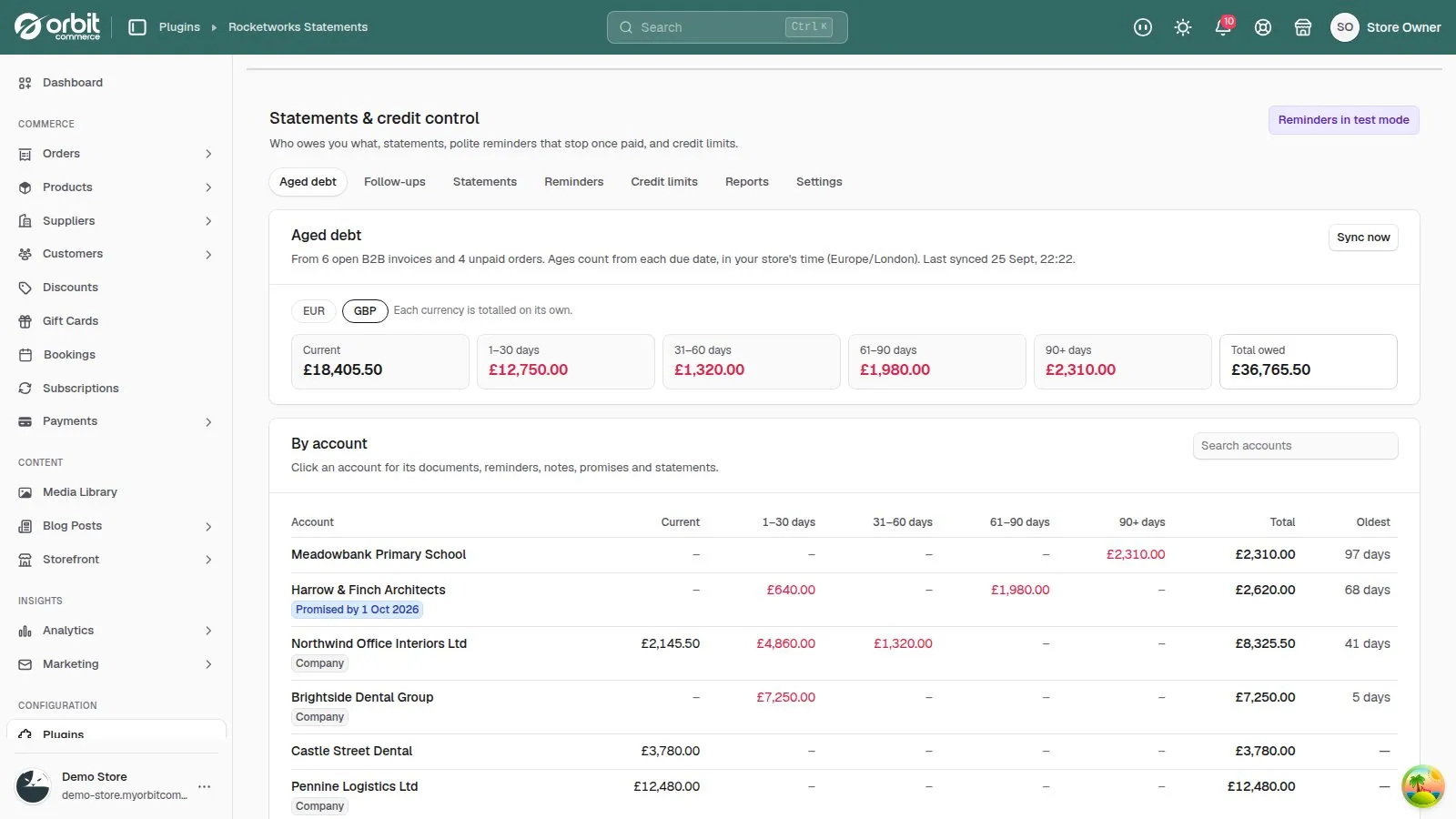
4. Refresh it
The plugin reads Orbit again every 15 minutes. Recorded a payment just now? Press Sync now on the Aged debt tab.
Good to know
- An unpaid order isn’t showing? Check its payment status in Orbit — orders paid by card at checkout were never owed.
Statements & Credit Control£29.99 a month · 14-day free trial · billed through Orbit