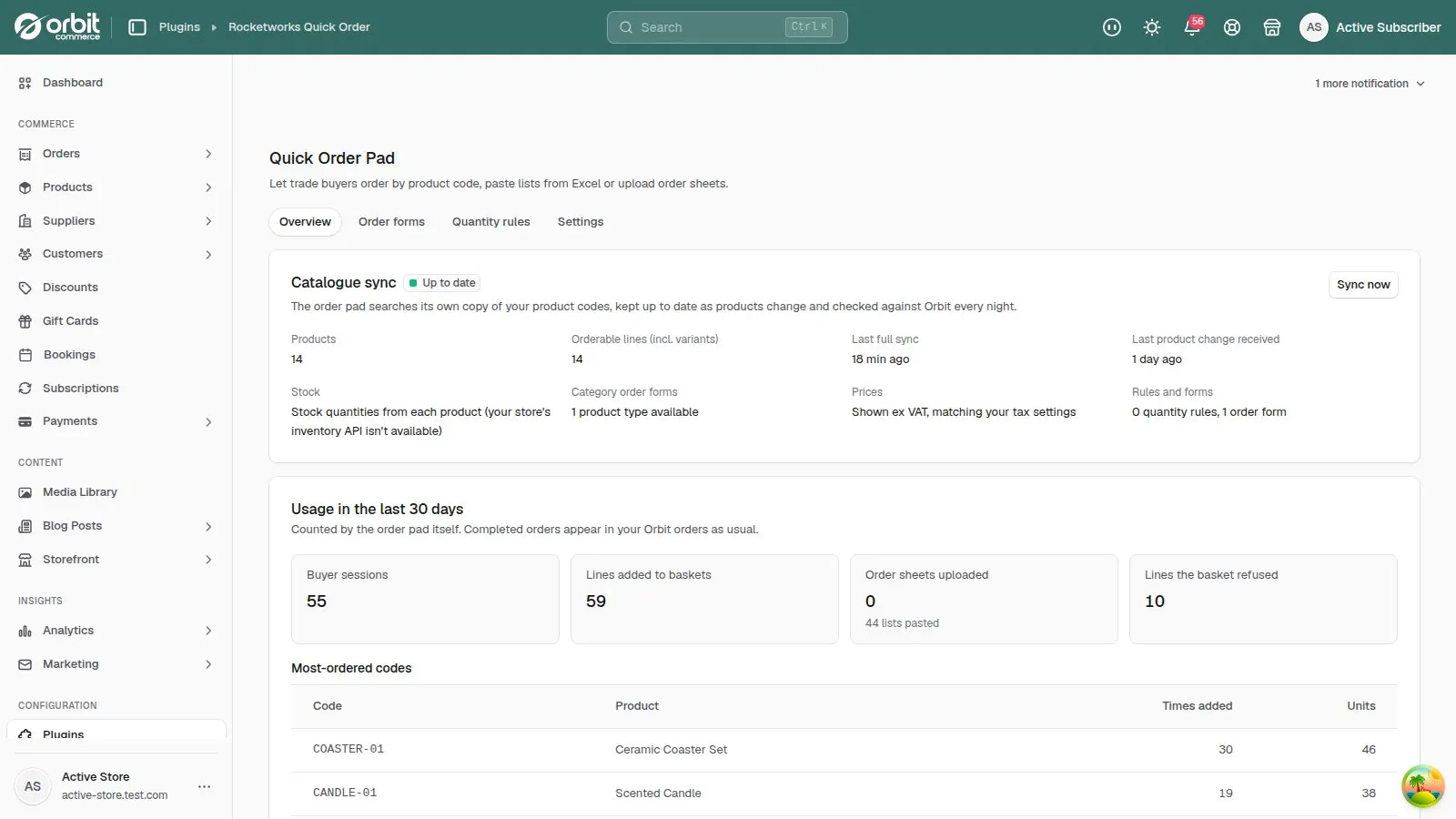
The Overview tab tells you whether the pad’s copy of your catalogue is up to date and how your buyers are using it. This tutorial explains each part.
In short
- Check Catalogue sync says Up to date.
- Read Usage in the last 30 days.
- Use Most-ordered codes to see what buyers add most.
1. Check the catalogue sync
Catalogue sync shows how many products and orderable lines (including variants) the pad knows about, and when they were last synced. Changes you make to products reach the pad within moments; stock is refreshed every hour, and everything is checked against Orbit again every night. Sync now runs a full sync straight away.
2. See how buyers use the pad
Usage in the last 30 days shows buyer sessions, lines added to baskets, order sheets uploaded and lines the basket refused. The pad counts these itself; completed orders still appear in your Orbit orders as usual.
3. Find your most-ordered codes
Most-ordered codes lists the products your buyers add most through the pad — a good guide to which categories deserve an order form.
Good to know
- A buyer says a code isn’t recognised but the product exists? Check it has that SKU and is Active — draft products are never shown. If you changed it just now, press Sync now.
Quick Order Pad£19.99 a month · 14-day free trial · billed through Orbit