Most customers book themselves, but some will phone, lose the email or order before you installed the plugin. In this tutorial we’ll cover the day-to-day screens: the Unbooked tab, the Calendar and a booking’s details.
Steps in short
- Send, resend or book on the customer’s behalf from Unbooked.
- Use Import recent orders for older open orders.
- Click a day to see bookings, change its capacity or block it.
- Open a booking to see notes, emails and the customer and crew links.
- Find the booked date in the order’s tags and custom fields.
1. Chase orders on the Unbooked tab
The Unbooked tab lists orders still waiting for the customer to choose a date:
- Send link / Resend link — emails a fresh link. Older links stop working.
- Link expired — the customer didn’t book in time. Resend it, or book it for them.
- Book for customer — after a phone call, choose the date and slot yourself. You can book a full day if you really need to (Allow over capacity) and choose whether the customer gets a confirmation email.
2. Import orders from before you installed
Import recent orders (top right) picks up open orders from the last 30 days that were placed before you installed the plugin. It doesn’t email those customers until you press Send link.
3. Work from the Calendar
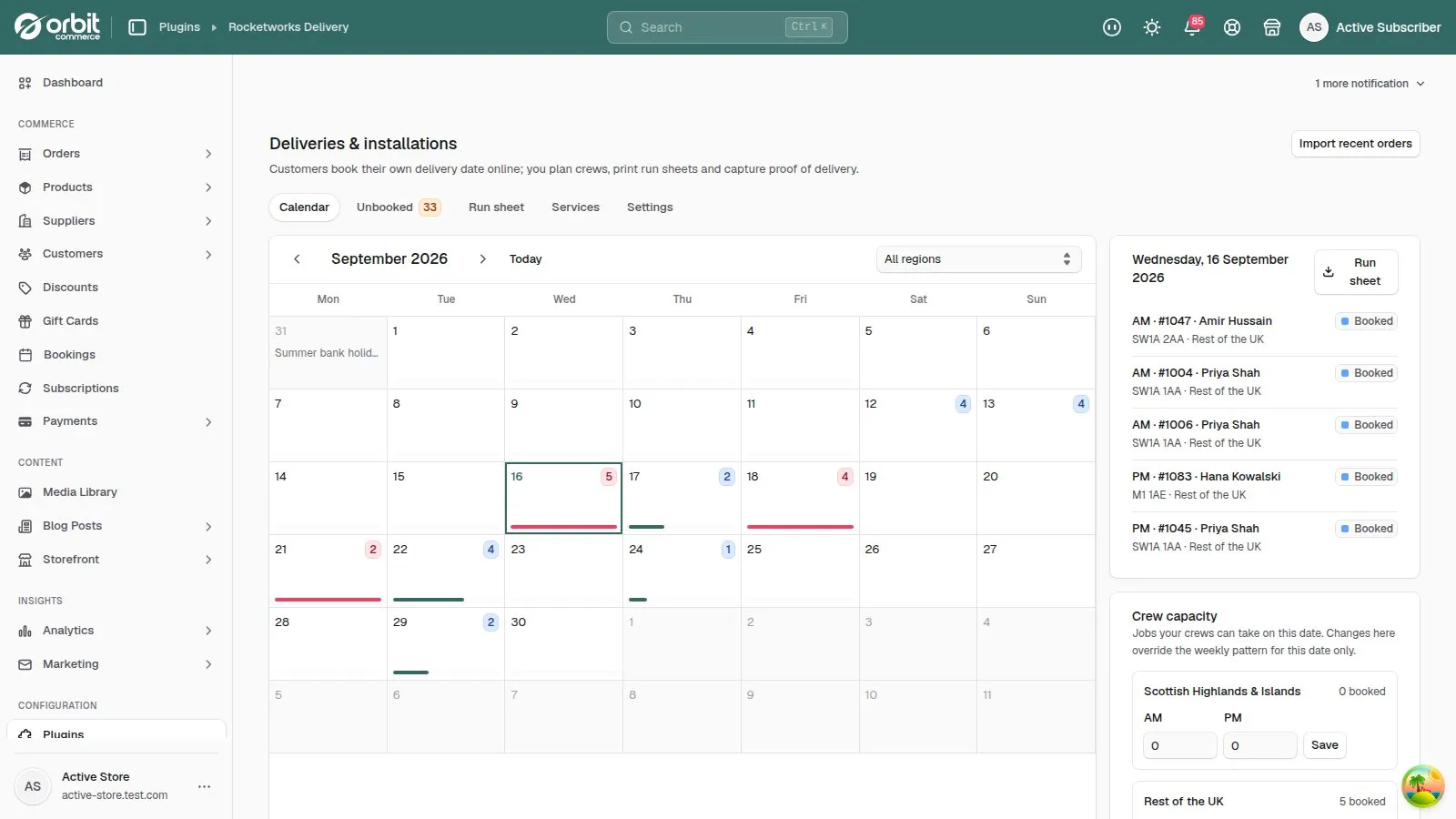
Each day on the Calendar shows how many jobs are booked, with a bar for how full it is. Click a day to:
- see and open that day’s bookings,
- change crew capacity for that date only, or Reset it to your weekly pattern,
- Block the date, or unblock it,
- download that day’s run sheet.
4. Open a booking
Open any booking to see the customer’s contact details, address and items, their notes (floor, lift, parking), your own office notes (printed on the run sheet), every email sent, and a customer link and crew link you can copy. Change date and Cancel delivery are here too.
5. See the booking on the Orbit order
So your team can see the booking without opening the plugin, it’s written onto the Orbit order:
- Tags —
delivery-bookedplus a dated tag such asdelivery-2026-09-15-am, handy for filtering the order list. You’ll also seedelivery-unbooked,delivery-completedordelivery-cancelled. - Order custom fields — Delivery date and Delivery slot.
- On Orbit versions that can’t store those yet, a single line in the order notes, such as “[Delivery] Booked for Tuesday 15 September 2026, Morning (8am–12pm)”.
Good to know
- Cancelling an order in Orbit cancels its delivery booking automatically and frees the slot.
- Reminders and cut-offs can’t be changed for one customer, but you can move or book any delivery yourself at any time from the booking’s page.
Delivery & Installation£39.99 a month · 14-day free trial · billed through Orbit