A piece needs a product before it can go in the basket. In this tutorial we’ll link pieces, explain how prices and stock stay up to date, and walk through what customers see when they buy a layout.
Steps in short
- Search by name or SKU and press Link.
- Updates arrive on product edits, on demand and every night.
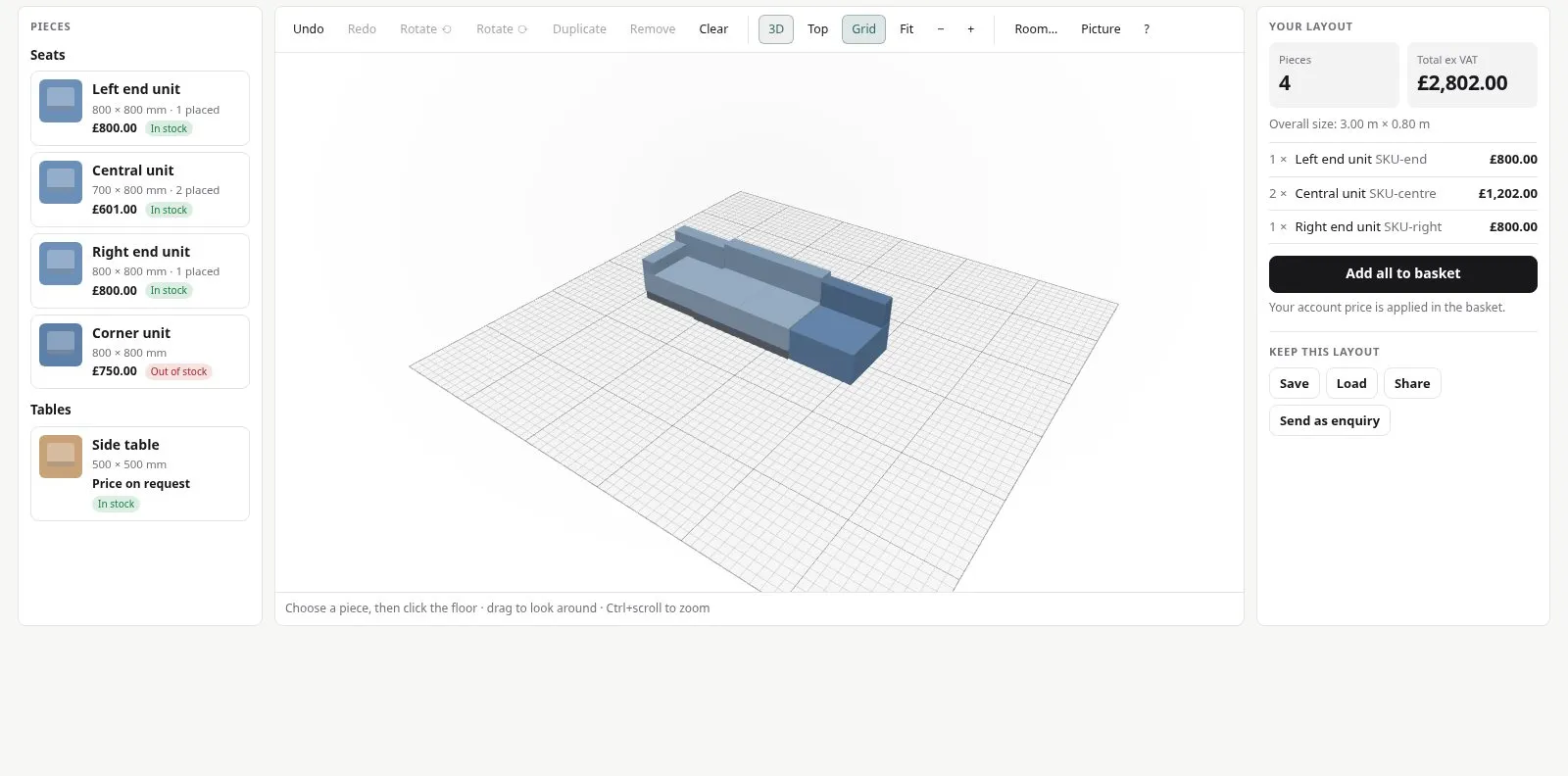
- Pieces on the left, the floor in the middle, the total on the right.
- Add all to basket adds every piece in the right quantities.
1. Link a product
In the piece editor, search your products by name or SKU and press Link — or pick the variant, the fabric or finish, if the product has them. The builder copies the product’s name, price, picture and stock.
2. Keep prices and stock fresh
Linked details refresh when you edit the product in Orbit, when you press Refresh prices & stock on the Overview tab, and every night. Sales in between aren’t sent to the plugin, so a piece can show “In stock” on the day it sells out — the basket is the safety net, checking stock again as each piece is added.
Prices show ex or inc VAT to match your store. If your customers have their own prices, keep the note “Your account price is applied in the basket” on.
3. What customers see
Customers pick a piece, move over the floor and click to place it; a see-through, gently pulsing copy shows where it will land, and it snaps edge to edge when it meets a piece it joins. They rotate with R, move a piece by double-clicking it, and use undo and redo. Everything also works from the keyboard, and on phones the panels become tabs below the floor.
4. Add the whole layout to the basket
Add all to basket adds every piece that can be bought, one product at a time with a progress bar, then offers Go to basket. If a product can’t be added — it just went out of stock, say — the customer sees why and can retry. Pieces that aren’t linked, or are out of stock, are listed with the reason and left out.
If they keep building, the button offers only what’s new — “Add 2 new pieces to basket” — so nothing goes in twice.
Good to know
- A piece is left out of the basket when it’s not linked, its product isn’t active, it’s out of stock without backorders, or its product was deleted.
Modular 3D Builder£49.99 a month · 14-day free trial · billed through Orbit