Modular 3D Builder turns a modular range — seating, desking, storage — into a 3D builder on your store. Customers place pieces on a floor grid, the pieces snap together, the count and total update as they build, and one click puts every piece in the basket.
In this tutorial we’ll install it, try it with the demo range and put it on your store.
Steps in short
- Install Modular 3D Builder — it only ever reads your store.
- Open 3D Builder from your sidebar.
- On the Overview tab, press Load the demo range.
- Add the 3D builder block to a page and pick the range.
- Enter the page’s path under Settings → Builder page.
1. Install it from the Orbit plugin store
Find Modular 3D Builder in the Orbit plugin store and install it. You get a 14-day free trial, then it’s £49.99 a month, and it works on every Orbit plan. Every permission it asks for is read-only: it reads your products, stock, tax setting, media and store settings.
2. Open it once
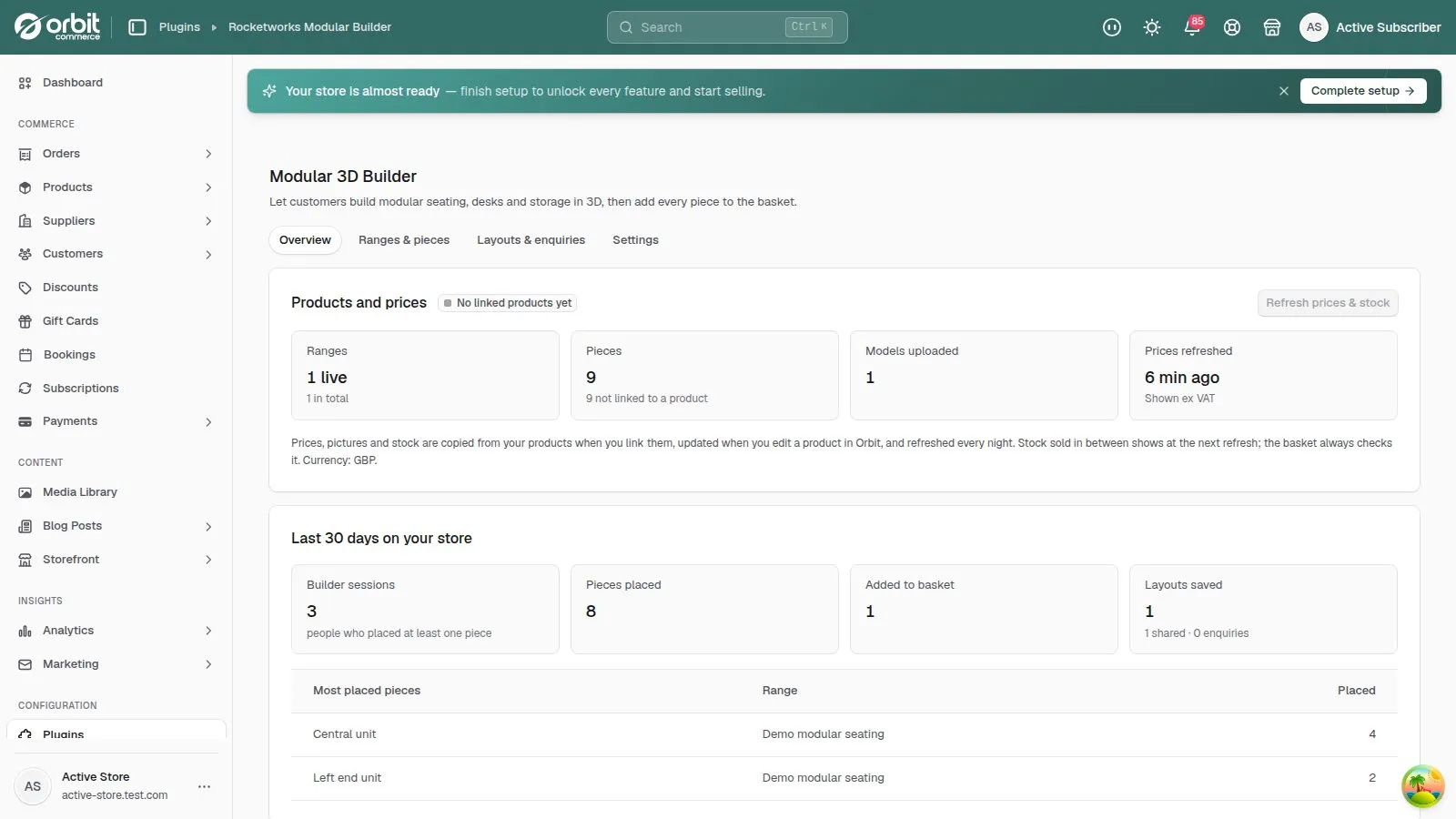
Open 3D Builder from your dashboard sidebar, under Installed Plugins. The first visit connects the plugin to your store — until then it can’t sync or receive anything from your store, so do it straight after installing.
3. Load the demo range
On the Overview tab, press Load the demo range. It adds a sample seating range with simple stand-in 3D models, so you can try the builder straight away. You can swap any piece for your own model or a placeholder shape later.
4. Put the builder on a page
Create a page for it — Storefront → Pages → Create page; “Design your layout” works well — and open it in the page builder. Add the 3D builder block, and under Range pick the range this page shows, or Let shoppers choose a range. Press Save, then Publish, and add the page to your menu.
Where to find it. Plugin blocks for pages and the cart are added from the page builder’s Plugins tab. If Modular 3D Builder isn’t listed there on your store yet, email support@rocketworks.dev and we’ll help you get it on your page.
5. Link product pages to the builder
Back in 3D Builder, open Settings and enter the page’s path — for example /pages/3d-builder — under Builder page. The product pages of your pieces can then show a “Design your layout” link.
To show it, add the Build with this piece widget to your product template:
In the page builder, open your product page template (Storefront → Templates, then the Products tab). From Elements → Single Product, add the Product Review element where you want the widget — despite its name, it shows any plugin’s product-page widget. In its Content settings, under Review Plugin, set Plugin to Modular 3D Builder rather than leaving it on Auto (first available).
The element keeps 400 px of space by default, even where the widget has nothing to show. Under Advance → Container, set Min Height to about 100 px — the widget still grows to fit what it shows.
Good to know
- The How it looks on your store panel at the bottom of a live range is the real builder — use it to check sizes, snapping and models before customers do.
- Customers see “Not for sale yet” on pieces that aren’t linked to a product. See Link pieces to products.
Modular 3D Builder£49.99 a month · 14-day free trial · billed through Orbit